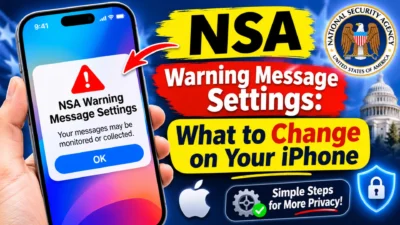

If you’ve searched for “NSA warning message settings iPhone,” you’ve probably seen headlines about a security alert from the National Security Agency. The phrasing makes it sound like Apple pushed a warning message to your phone, or that there’s a hidden NSA setting buried somewhere in iOS.
Neither is true. The NSA did not send a message to your iPhone. It did not build a settings panel into iOS. What actually happened is simpler and more useful: the NSA published public guidance recommending that iPhone users adjust certain privacy settings to reduce their exposure to tracking and surveillance . The “warning message” is the news coverage, not a notification on your device.
This guide explains what the NSA actually recommended, where those settings live on your iPhone, and how to change them.
📢 What the NSA Actually Said
The NSA’s guidance focused on two areas of iPhone privacy: location sharing and advertising permissions . The agency warned that location data can reveal sensitive information about users, including daily routines, movement patterns, and associations between people and places .
This warning followed a major data breach involving Gravy Analytics, a company that had sold smartphone location data to the U.S. government. The breach exposed location data from popular apps, including dating apps like Tinder and Grindr, and even games like Candy Crush . The NSA’s guidance was a response to that broader pattern of location data being collected and sold.
Crucially, the NSA did not identify a flaw in iOS itself. It did not say Apple was secretly sending data to intelligence agencies. It recommended that users review and tighten settings that already exist on every iPhone.
📍 Setting 1: Location Services Permissions
This is the core of the NSA’s recommendation. Location Services is the iPhone feature that allows apps to access your physical location. The NSA advised users to change any app set to “Always” to either “While Using the App” or “Never” .
“Always” means an app can track your location even when you’re not actively using it. That data can be collected over time and, in some cases, sold to third parties.
How to Change It
Open Settings, tap Privacy & Security, then tap Location Services. You’ll see a list of every app on your phone that has requested location access. Next to each app is its current permission level: Always, While Using, or Never.
Tap any app set to “Always” and change it to “While Using” or “Never” . For apps that don’t genuinely need your location, “Never” is the safest choice. For apps like maps or ride-sharing, “While Using” is usually sufficient.
One caveat worth knowing: if an app set to “While Using” is left open in the background, it may continue tracking until you fully close it . Closing apps you’re not using reduces that exposure.
🎯 Setting 2: Advertising Tracking
The second part of the NSA’s guidance involved Apple’s advertising identifier. This is a random code assigned to your device that advertisers use to track your activity across apps. The NSA recommended limiting ad tracking and resetting the advertising ID regularly, ideally on a weekly basis .
How to Limit Ad Tracking
Open Settings, tap Privacy & Security, and scroll down to Apple Advertising. There you’ll find a toggle for Personalized Ads . Turning this off limits Apple’s use of your data for targeted advertising.
How to Reset Your Advertising ID
The advertising ID reset option is also found in the Apple Advertising section. Resetting the ID severs the link between your device’s past activity and future ad targeting. The NSA suggested doing this weekly, though any regular interval is better than never .
🛡️ What the NSA Did Not Recommend
It’s worth being clear about what the guidance did not include, because misinformation about this topic spreads quickly.
The NSA did not recommend turning off iMessage, disabling Wi-Fi entirely, or installing a third-party security app. It did not suggest that Siri is recording your conversations for the government. And it did not advise users to stop using their iPhones.
The guidance was narrow and practical: review location permissions, limit ad tracking, and reset your advertising ID. These are standard privacy hygiene steps, not emergency measures.
❓ FAQs
Did the NSA send a warning message to my iPhone?
No. The NSA did not send a notification or message to any iPhone. It published public guidance that news outlets reported on. There is no “NSA warning message” in your Settings app .
Where are the NSA-recommended settings on my iPhone?
The location settings are under Settings > Privacy & Security > Location Services. The advertising settings are under Settings > Privacy & Security > Apple Advertising .
Should I set all apps to “Never” for location access?
Not necessarily. Apps like Maps, ride-sharing, and weather need your location to function. “While Using” is a reasonable compromise for those. For apps that don’t need location at all, “Never” is appropriate.
How often should I reset my advertising ID?
The NSA suggested resetting it weekly, but any regular schedule is better than leaving it unchanged indefinitely. The goal is to break the continuity of tracking data over time .
Is this warning about a specific iOS vulnerability?
No. The NSA’s guidance was about privacy settings and data exposure, not a software vulnerability. It followed a data breach at a third-party company, not a flaw in iOS itself .
Do I need to change these settings on my iPad too?
The same privacy settings exist on iPad, and the same logic applies. If you’re concerned about location tracking and ad targeting, adjusting them on all your Apple devices makes sense.
💡 Final Thoughts
The “NSA warning message settings iPhone” search reflects a real concern, but the framing is misleading. There’s no hidden NSA message on your phone and no secret setting to unlock. What exists is a set of privacy controls that the NSA recommended you review, and they’re in the same place they’ve always been: under Privacy & Security.
The changes are simple. Spend five minutes reviewing Location Services and setting unnecessary apps to “Never” or “While Using.” Turn off Personalized Ads. Reset your advertising ID. These aren’t dramatic steps, but they reduce the amount of data your phone shares about where you go and what you do.
If you’ve been meaning to tighten your iPhone privacy settings, this is a good reason to do it. The settings are already there. You just have to open them.

Hamid Mehmood is a passionate content creator dedicated to making words, messages, and online expressions easy to understand. He enjoys creating clear, helpful content that helps readers discover meanings and communicate with confidence.