
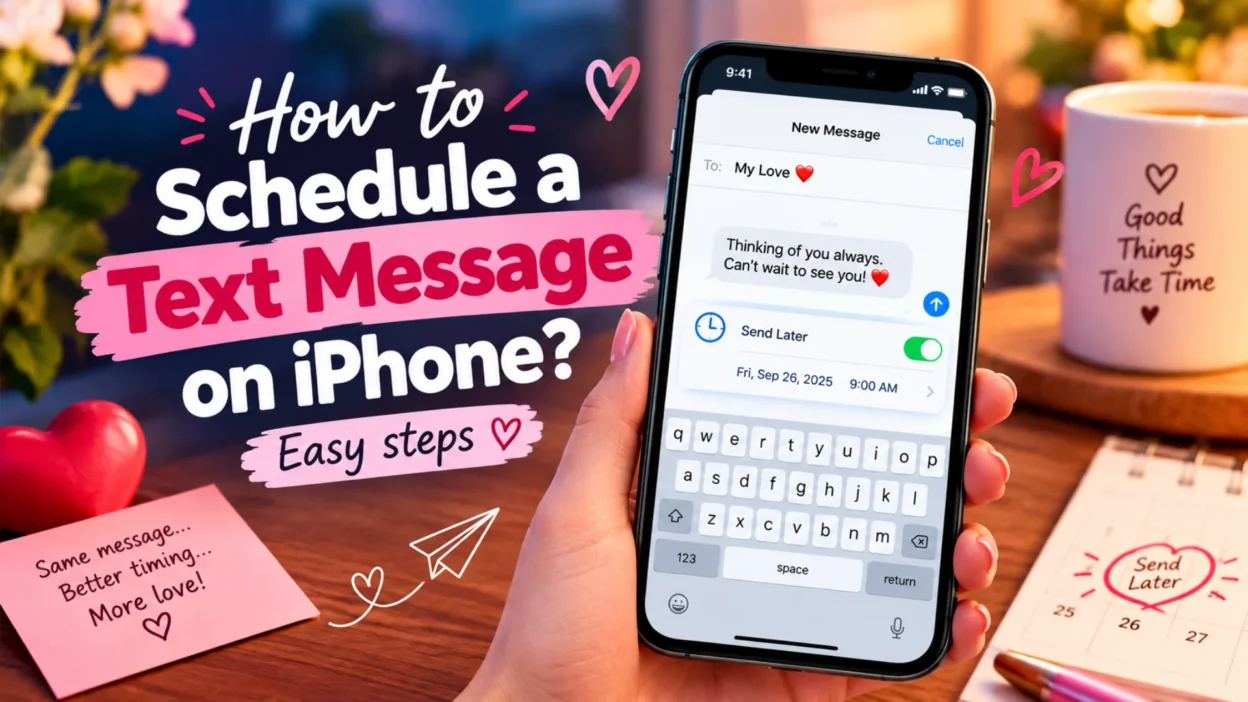
You’re lying in bed at midnight and remember it’s your friend’s birthday tomorrow. Or you’ve got an important work follow-up that you need to send first thing in the morning, but you know you’ll forget. Scheduling a text message on your iPhone solves these problems completely.
Apple introduced a built-in scheduling feature called Send Later with iOS 18. This lets you write a message now and choose exactly when it gets sent—whether that’s in a few hours, tomorrow morning, or next week. This guide walks you through setting it up, managing your scheduled messages, and troubleshooting if something goes wrong.
What You Need Before You Start
The Send Later feature requires specific conditions to work properly. Before you try to schedule a message, make sure you meet these requirements.
You need to be running iOS 18 or later on your iPhone . The feature also requires that you’re using iMessage, not standard SMS. This means the recipient must have an Apple device, and your message will be sent as an iMessage (blue bubbles).
The good news is that the recipient can use any device to receive the message, and they won’t know that you scheduled it in advance . You can schedule a message up to 14 days into the future .
How to Schedule a Text Message on iPhone
The process is straightforward once you know where to look. Here’s the step-by-step method.
Step 1: Open the Messages App
Go to the Messages app on your iPhone. You can either start a new conversation by tapping the compose button, or open an existing chat with the person you want to message .
Step 2: Access Send Later
Instead of typing your message first, tap the plus (+) button next to the text field . A menu will appear with several options. Tap Send Later .
If you don’t see Send Later immediately, tap More to reveal additional options .
Step 3: Choose Your Time
Once you select Send Later, a scheduling interface will appear. Tap the time to open the scheduler, then choose the date and time you want your message delivered . You can adjust the date wheel to select any time within the next 14 days.
Step 4: Type Your Message
With your time selected, tap the text field to bring up your keyboard. Type the message you want to send .
Step 5: Send and Confirm
When you’re ready, tap the send button. Your message will now appear in the conversation with a dashed outline and the scheduled time displayed above it . This visual indicator shows that the message is pending and hasn’t been sent yet.
How to Edit or Reschedule a Scheduled Message
Plans change. Maybe you need to fix a typo or adjust the delivery time. You can edit or reschedule any message until its scheduled delivery time .
To Reschedule the Time
Open the conversation and find your scheduled message. If you don’t see it, scroll down to the bottom of the conversation—scheduled messages may appear below your sent messages .
Tap Edit beside the date above your scheduled message. Then tap Edit Time, choose a new time, and tap away from the schedule to confirm .
To Edit the Message Text
Touch and hold the scheduled message bubble, then tap Edit . Make your changes and tap the send button to confirm the edits. You can also tap the revert option to undo your changes .
To Send Immediately
If you decide you don’t want to wait, you can send the message right away. Tap Edit above the scheduled message and choose Send Message .
How to Delete a Scheduled Message
If you change your mind entirely, you can cancel a scheduled message before it’s delivered. When you delete a message before its scheduled time, it’s canceled and won’t be sent to the recipient .
Open the conversation and touch and hold the scheduled message. Tap Delete to cancel it .
How Send Later Works in the Background
Understanding what happens when you schedule a message helps you use the feature with confidence.
When you schedule an iMessage, it’s encrypted and stored on Apple servers only until it’s time to send . Once the message is delivered, it’s removed from Apple servers, the bubble becomes a solid color, and the dashed line disappears .
A key benefit: your scheduled message will be delivered even if all your devices are offline . Because Apple stores it on their servers, you don’t need to keep your phone connected for the message to send at the right time.
However, you do need to be online to reschedule, edit, or delete a scheduled message . If you’re offline and want to make changes, you’ll need to reconnect first.
Alternative Methods for Older iOS Versions
If your iPhone is running iOS 17 or earlier, you can’t use the native Send Later feature. There are still ways to schedule texts, though they require more setup.
Using the Shortcuts App
The Shortcuts app, which comes preinstalled on iPhones running iOS 13 or later, can automate text sending. Open Shortcuts, go to the Automation tab, and tap Create Personal Automation. Select Time of Day, choose your schedule, then add a Send Message action .
One important note: if you’re creating a one-time message, remember to delete the automation after it runs. Otherwise, it will keep sending on the schedule you set .
Using Third-Party Apps
Several apps in the App Store offer text scheduling, such as Scheduled and Text Delay . Some of these apps don’t actually send the message for you—instead, they send you a notification at the right time, and you tap to send it yourself.
Using the Reminders App
A simpler workaround is to use the Reminders app. You can compose your message in the notes section of a reminder, set a time, and then copy and paste it into Messages when the reminder goes off .
Troubleshooting Failed Scheduled Messages
If your scheduled text doesn’t send as expected, here are some steps to try.
Check for a failed message icon and select Try Again or Send as Text Message if those options appear . For iMessages, verify that you have an internet connection at the scheduled time. For SMS messages, confirm that you have cellular service.
Also check the recipient’s device status. Delivery may be delayed if their device is offline or unavailable .
FAQs
Can I schedule a text message on iPhone?
Yes, if you’re running iOS 18 or later. The Messages app includes a built-in Send Later feature that lets you schedule messages up to 14 days in advance .
How far in advance can I schedule a text?
You can schedule a message up to 14 days into the future . The date wheel may show months ahead, but the feature only allows scheduling within a two-week window.
Can I schedule a text to an Android user?
The Send Later feature only works with iMessage. If you’re texting an Android user, your message will send as SMS or RCS and cannot be scheduled with the native feature .
Will the recipient know I scheduled the message?
No. The recipient won’t know that the message was scheduled. It arrives like any normal text .
Does the scheduled text send if my phone is off?
Yes. Apple stores your scheduled message on their servers and delivers it at the chosen time, even if all your devices are offline .
How do I cancel a scheduled text?
Open the conversation, touch and hold the scheduled message, and tap Delete. This cancels the message so it won’t be delivered .
Why can’t I find the Send Later option?
Make sure you’re running iOS 18 or later and that you’re using iMessage. The option appears after you tap the plus (+) button in the Messages app .
Conclusion
The Send Later feature in iOS 18 finally brings native text scheduling to the iPhone. Whether you’re remembering a birthday, sending a late-night thought without waking someone up, or queuing up a work message for the morning, you can now write it on your own time and let your iPhone handle delivery.
The process takes just a few taps, and you can edit, reschedule, or cancel messages right up until they’re sent. If you’re on an older iOS version, the Shortcuts app offers a workable alternative, though it requires more setup. For most users on iOS 18 or later, the built-in feature is the simplest and most reliable way to schedule texts.

Hamid Mehmood is a passionate content creator dedicated to making words, messages, and online expressions easy to understand. He enjoys creating clear, helpful content that helps readers discover meanings and communicate with confidence.