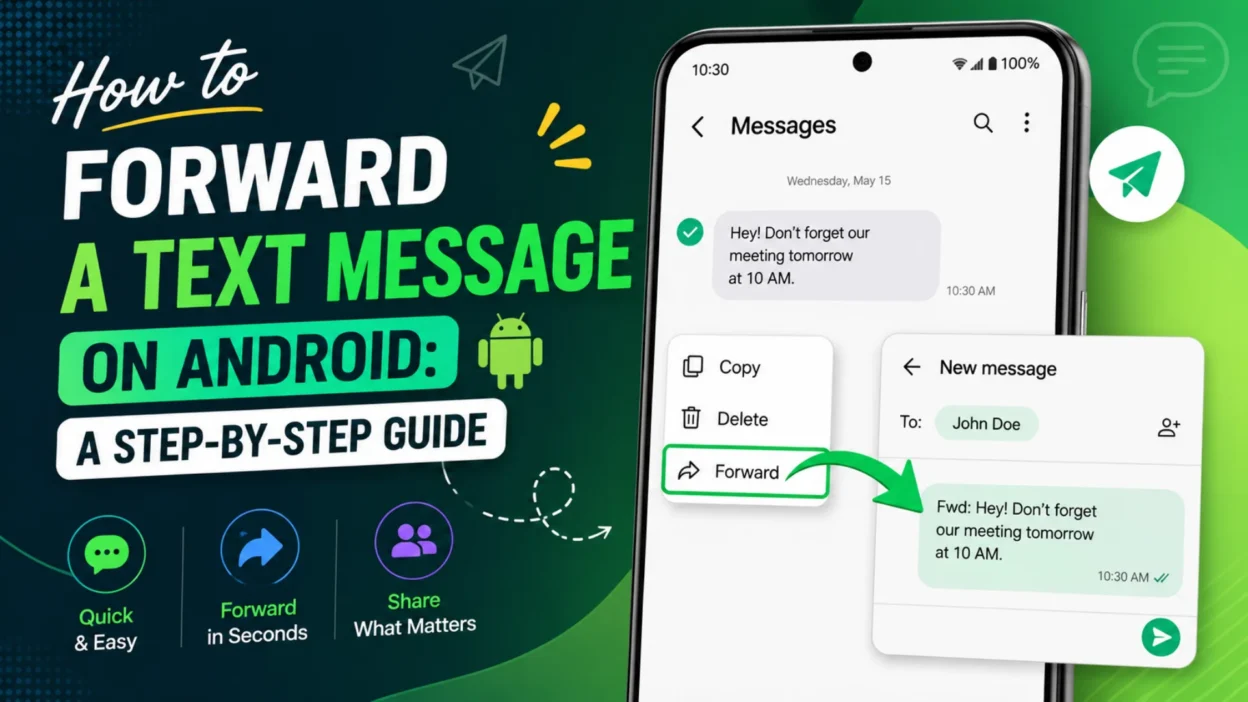
You’ve received an important text, and now you need to share it with someone else. Maybe it’s an address you need to send, important information to pass along, or a funny conversation you want a friend to see. Forwarding a text message is one of those basic smartphone skills that comes in handy more often than you’d think. The process is straightforward once you know where to look .
This guide provides clear, step-by-step instructions for forwarding SMS and MMS messages on Android. It covers both the standard Google Messages app and other common device variations, so you can share information quickly and easily.
What to Know Before You Forward a Text Message
Before you start forwarding texts, it helps to understand a few basic rules about how this feature works on Android.
Can You Forward Text Messages on Android?
Yes, you can forward text messages on Android. This has been a standard feature built into Android’s default messaging app since Android 4.0 . Virtually every Android phone with a version 4.0 or newer operating system has this capability .
Limitations of Native Forwarding
The default messaging app only allows you to forward standard SMS and MMS messages. This feature does not work for messages from third-party apps like WhatsApp, Telegram, or Facebook Messenger. Each of these apps has its own forwarding system .
Additionally, most native messaging apps only let you forward one message at a time. Bulk forwarding multiple messages isn’t possible with the default app . If you select more than one message, the Forward option typically disappears from the menu, and you can only delete them in bulk .
Does the Original Sender Know You Forwarded Their Message?
No. Forwarding a message is essentially copying and pasting text. The original sender receives no notification that you forwarded their message to someone else, unless someone involved in the conversation tells them . This makes forwarding a discreet way to share information.
How to Forward a Text Message in Google Messages
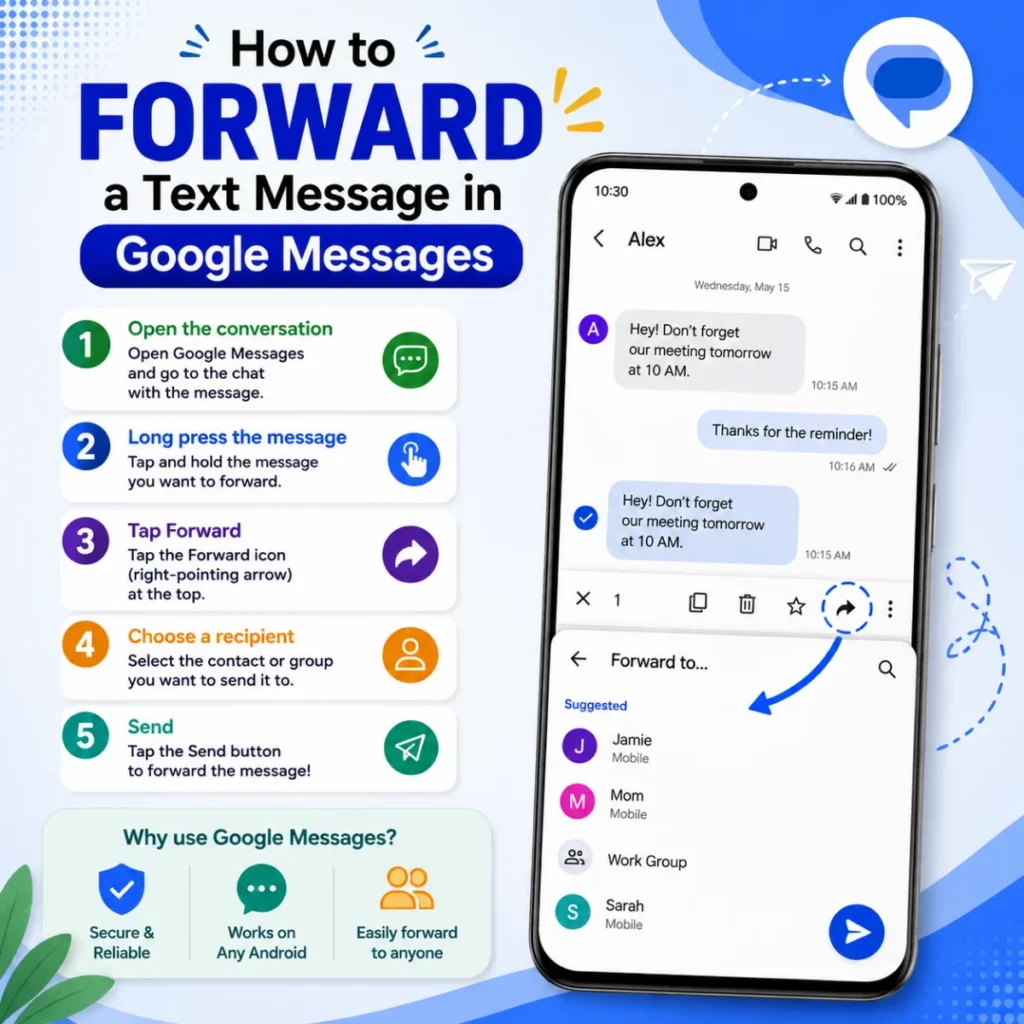
Google Messages is the default messaging app on most modern Android phones, including the Google Pixel series and Samsung Galaxy S25 and newer devices . Here’s how to forward a text using this app.
Step-by-Step Instructions
- Open the Messages app on your Android phone
- Open the conversation that contains the message you want to forward
- Tap and hold the specific message bubble you want to forward. The message will become highlighted to show it’s selected
- Tap the three-dot menu (⋮) in the top-right corner of the screen
- Select “Forward” from the dropdown menu that appears
- Choose a recipient from the list of recent contacts that appears
- To forward to someone not on the list, tap “New Message” and enter a phone number or search for a contact
- Add your own text if you want to provide context along with the forwarded content
- Tap the send button (paper airplane icon) to forward the message
Important Tip for Google Messages Users
After long-pressing the message, the Forward option is inside the three-dot menu. Many people miss this because they expect to see “Forward” right away in the popup menu .
How to Forward a Text Message in Samsung Messages
Samsung Messages is still used on many older Samsung Galaxy devices released before 2025. The steps are slightly different but just as simple .
Step-by-Step Instructions
- Open the Samsung Messages app on your phone
- Open the conversation containing the message you want to forward
- Tap and hold the message bubble until a popup menu appears
- Tap “Forward” directly from the popup menu. Unlike Google Messages, the option appears immediately
- Choose a recipient or enter a new number in the “To” field
- Edit the message if needed
- Tap the send button (arrow icon) to forward the message
Important Note for Samsung Users
Starting with the Samsung Galaxy S25 series (January 2025), Samsung has removed Samsung Messages entirely. Google Messages is now the only pre-installed messaging app on the Galaxy S25 and newer Samsung devices .
Alternative Methods to Forward Text Messages
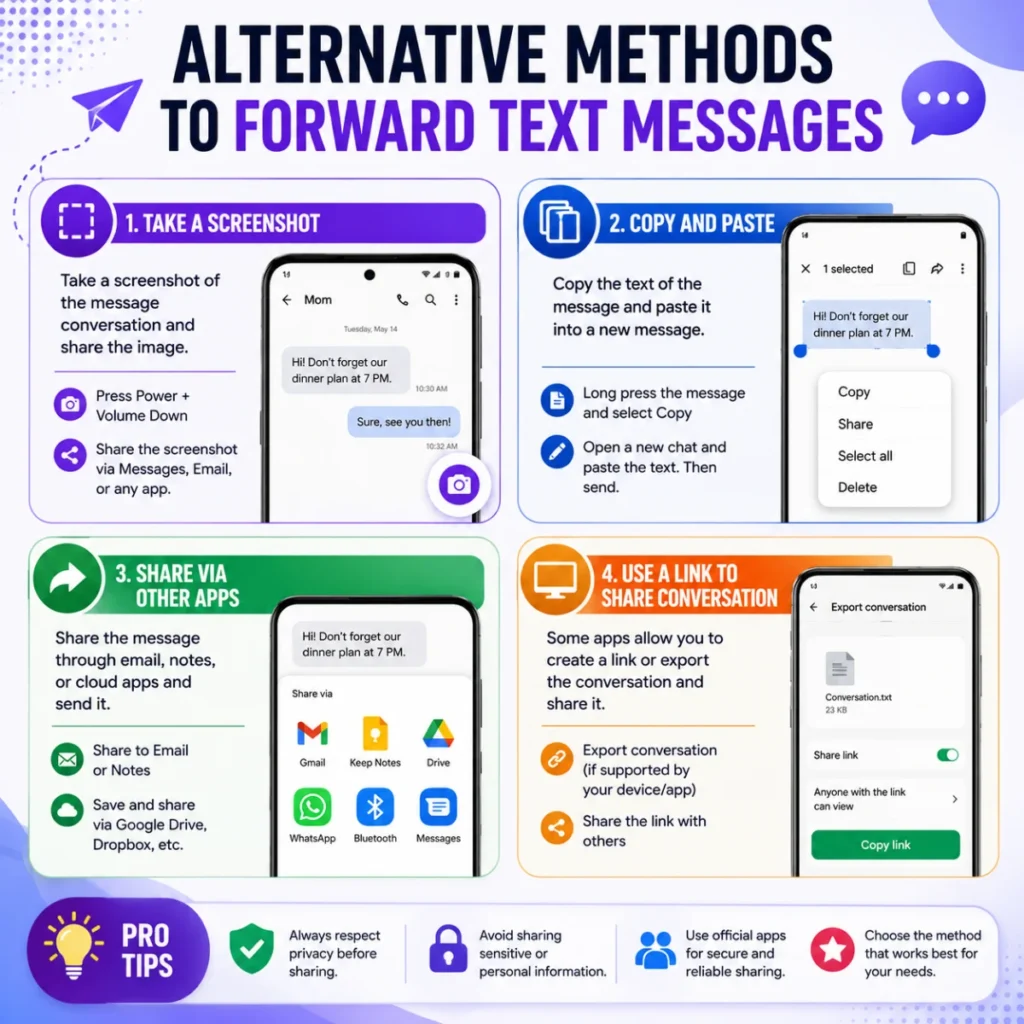
Sometimes the default forwarding options don’t quite fit your needs. Here are alternative methods you can try.
The Copy and Paste Method
If your messaging app doesn’t allow you to forward messages easily, or you want to edit the content more freely before sending, copy and paste is a reliable alternative .
How to do it:
- Open the message thread containing the text you want to forward
- Tap and hold the message to select it
- Tap “Copy” from the popup menu or the copy icon at the top of the screen
- Go to the contact you want to send the text to, or start a new conversation
- Tap and hold the message box where you usually type
- Select “Paste” from the popup menu
- Make edits if you want to
- Hit send
Share via Email or Other Apps
Android doesn’t have a direct “forward to email” button for text messages, but you can share messages through other apps .
How to do it:
- Long-press the message in Google Messages
- Tap the three-dot menu (⋮) in the top right
- Select “Share” (not “Forward”)
- Choose your email app (like Gmail) or another app from the share sheet
- Enter the recipient email address and send
Forwarding an Entire Text Conversation
There’s no built-in way to forward an entire text conversation on Android . Here are the best workarounds:
1: Use SMS Backup & Restore App This is the most reliable method for exporting full conversations .
2: Use Google Messages for Web Access your messages on a computer for easy copying .
3: Screenshot Method For short conversations, take scrolling screenshots. On most Android phones, press Power + Volume Down, then tap “Capture more” or “Scroll capture” to extend the screenshot .
How to Forward Text Messages Automatically
If you need to forward messages frequently or automatically to another number or email, there are third-party apps that can help .
Using SMS Forwarder Apps
Apps like SMS Forwarder or Auto Forward SMS can automatically redirect messages based on your settings .
How to set it up:
- Open the Google Play Store on your phone and install an SMS forwarding app like SMS Forwarder
- Open the app and grant the necessary permissions
- Tap the “+” option to create a forwarding rule
- Choose your preferred options and enter the recipient’s phone number or email
- Tap save and confirm the setting
Forwarding Texts to Email
For automatic forwarding to email, you can use a similar app that syncs SMS to email by setting rules and permissions .
If you use Google Voice, you can enable automatic text-to-email forwarding by going to Settings > Messages and toggling on “Forward messages to email” .
Common Issues and Troubleshooting
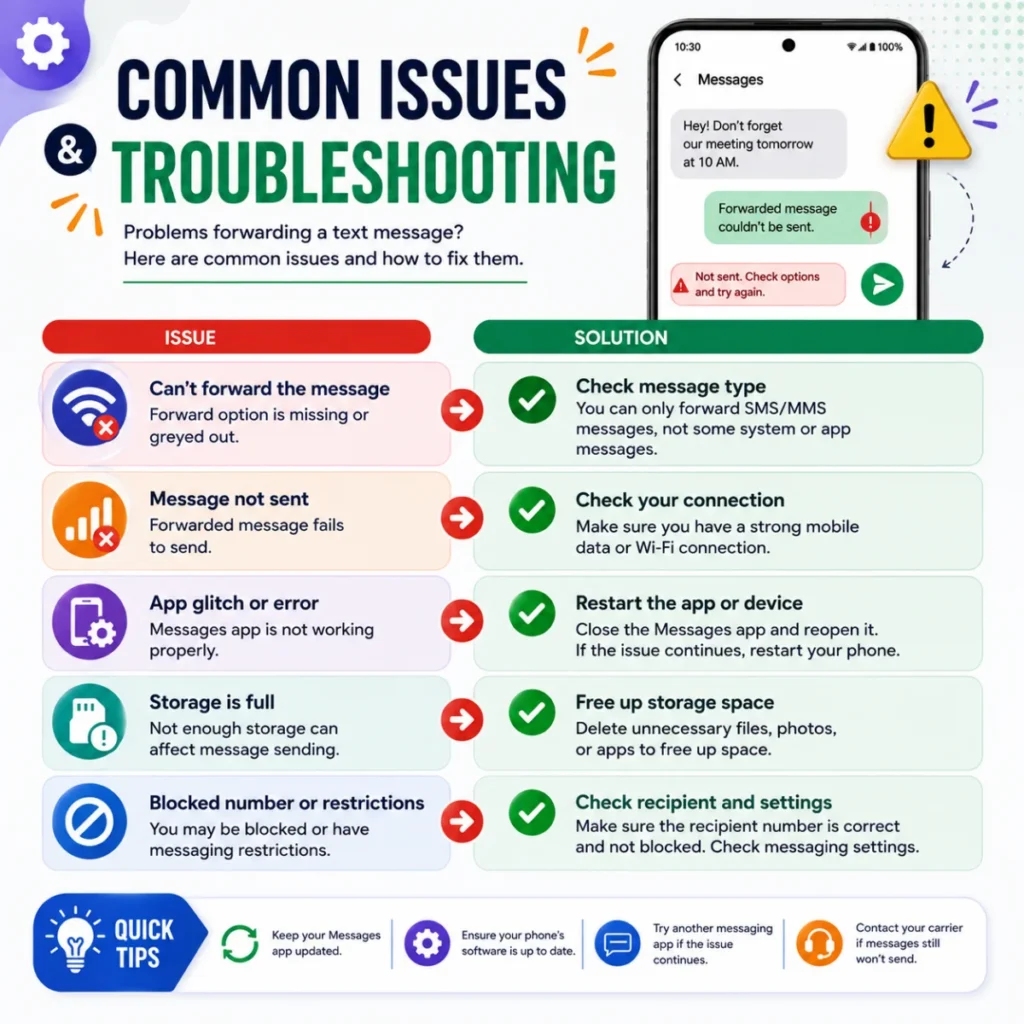
If you’re having trouble forwarding text messages, here are some common problems and solutions.
The Forward Option Is Missing
Make sure you’re long-pressing the specific message bubble until it’s highlighted. In Google Messages, if you see emoji reactions instead of a menu, you haven’t long-pressed correctly .
In Google Messages, the Forward option is inside the three-dot menu after long-pressing. If you’re looking for it in the initial popup, you won’t find it . In Samsung Messages, the Forward option appears directly in the popup menu .
Can’t Forward Multiple Messages
Google Messages doesn’t support forwarding multiple messages at once. When you select more than one message, the Forward option disappears . Use the copy-paste method instead to combine multiple messages into one text .
OTP or Verification Code Forwarding Issues
Some carriers and services block the forwarding of OTP or verification codes as a security measure. If you’re having trouble forwarding these messages, it might be intentionally restricted by your carrier or the service provider.
FAQs
Can I forward a text message on Android?
Yes, Android devices have built-in support for forwarding text messages through the default messaging app. This has been a standard feature since Android 4.0 .
How do I forward a text message on Android?
Open the Messages app, tap and hold the message you want to forward, then select Forward from the menu. Choose a recipient and tap send .
Will the original sender know I forwarded their message?
No. Forwarding a message is like copying and pasting text. The original sender won’t be notified that you forwarded it .
Can I forward multiple text messages at once?
No. Google Messages and most default messaging apps only allow you to forward one message at a time. You can use copy-paste as a workaround .
Can I forward a text message to an email address?
Yes, you can share a message to your email app by selecting Share instead of Forward, then choosing your email app from the share sheet . You can also use third-party apps for automatic forwarding to email .
Can I forward a WhatsApp message the same way?
No. WhatsApp has its own forwarding system. The Android SMS forwarding feature only works for standard SMS and MMS messages .
What if my Samsung phone doesn’t have Samsung Messages anymore?
Starting with the Galaxy S25 series (January 2025, Samsung devices come with Google Messages as the default app . Follow the Google Messages instructions instead.
How do I forward an entire text conversation?
There’s no built-in way to forward an entire conversation. Use SMS Backup & Restore, Google Messages for Web, or screenshot methods as workarounds .
Conclusion
Forwarding a text message on Android is a simple process that can be done in just a few taps, whether you’re using Google Messages, Samsung Messages, or another app. The basic method works the same across most devices, with minor differences in where to find the Forward option.
If you find yourself needing to forward messages frequently or automatically to another device or email, exploring a dedicated third-party app can provide those advanced features. But for most everyday use, the standard forwarding tool is perfect.

Hamid Mehmood is a passionate content creator dedicated to making words, messages, and online expressions easy to understand. He enjoys creating clear, helpful content that helps readers discover meanings and communicate with confidence.