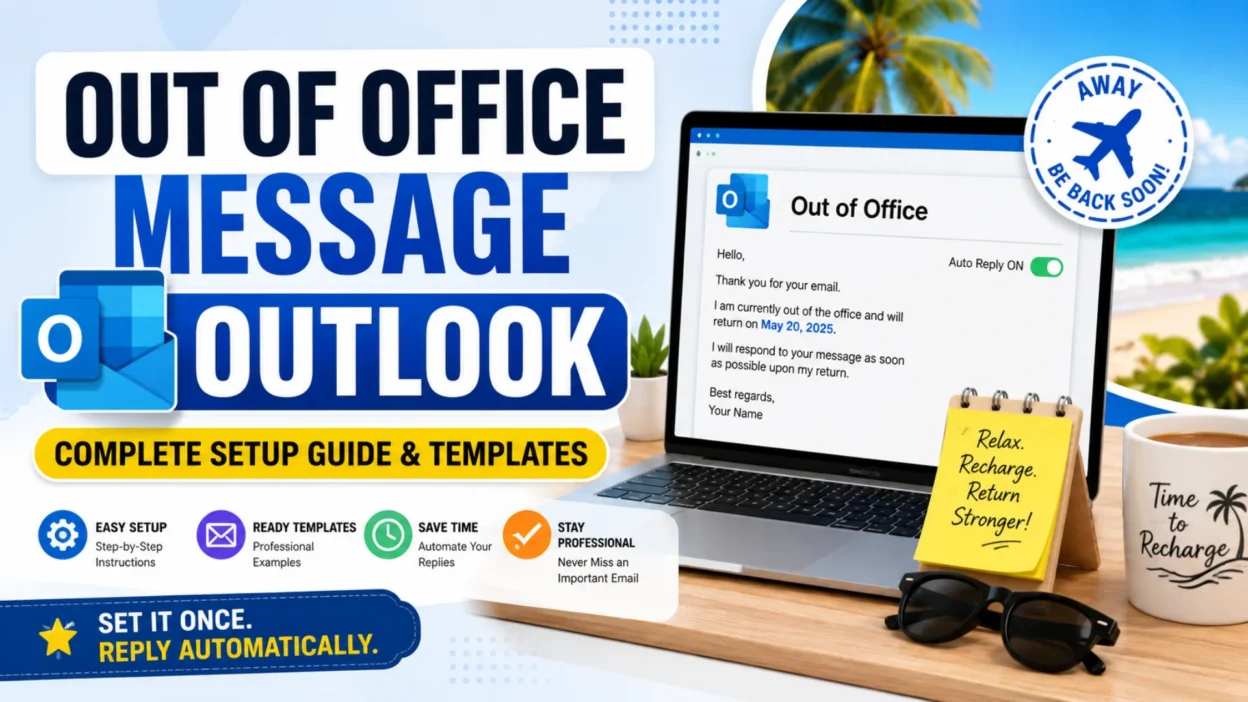
Setting up an out-of-office message in Outlook is essential whenever you’re away—whether you’re on vacation, attending a conference, working part-time, or dealing with an unexpected emergency . This automated reply system, also known as automatic replies, helps manage expectations and maintains professional communication even during your absence .
A well-crafted out-of-office message reassures the sender with clarity and warmth, making it clear that help is available even while you’re away. It also protects your boundaries by stopping people from chasing you while you’re supposed to be relaxing. This guide covers everything you need to know, from the step-by-step setup process to expert tips and ready-to-use templates.
What to Include in Your Out-of-Office Message
Before diving into the setup, it helps to know what makes an effective out-of-office message. According to Microsoft and professional etiquette experts, your message should include three essential elements :
- The dates of your absence: Be specific about when you’ll be away and when you’ll return.
- Your reply expectations: Be honest about whether you’ll check email regularly, occasionally, or not at all.
- An alternate contact: Provide the name and contact details of someone who can help in your absence.
A professional message might look like this:
“Thank you for your email. I am currently out of the office and will return on June 2. I will respond as soon as possible upon my return.”
How to Set Up an Out-of-Office Message in Outlook Desktop App
Outlook Classic (Windows)
If your Outlook has a “File” tab in the top-left corner, you are using the Classic version .
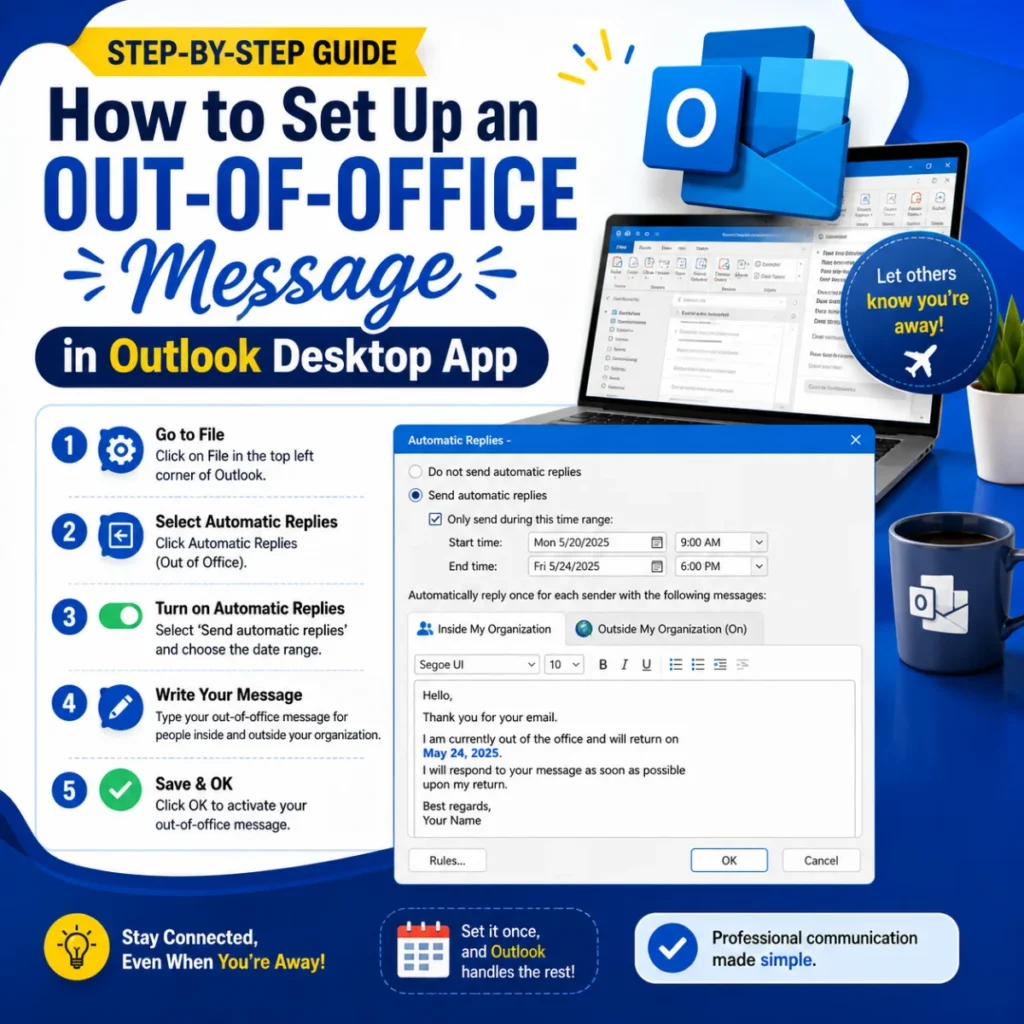
- Open Outlook and click the File tab in the top-left ribbon .
- Click on Info in the left-hand menu .
- Click the Automatic Replies (Out of Office) button .
- In the pop-up window, select Send automatic replies .
- If you want to schedule your replies for a specific period, check Only send during this time range and enter your start and end dates and times .
- Click on the Inside My Organization tab and type the message you want your colleagues to receive .
- For external senders, click the Outside My Organization tab. Check the Auto-reply to people outside my organization box . You can choose to send replies only to your contacts or to anyone .
- Type your external message in the provided text box .
- Click OK to save and activate your out-of-office reply .
Outlook New (Windows)
In the New Outlook for Windows, the process is similar to the web version:
- Click the gear icon in the top-right corner .
- Select View all Outlook settings at the bottom of the menu .
- Navigate to Mail > Automatic replies .
- Toggle Turn on automatic replies .
- If desired, check Send replies only during a time period and set your start and end dates .
- Type your message in the text box .
- Click Save .
Outlook for Mac
- Open Outlook and click Tools in the top menu .
- Select Automatic Replies .
- Set the date range .
- Add your out-of-office message for internal and external recipients .
- Click OK or Save .
How to Set Up an Out-of-Office Message in Outlook Web App
For Outlook on the Web (http://outlook.office.com):
- Go to the Outlook website and sign in .
- Click the gear icon in the top-right corner .
- Click View all Outlook settings at the bottom .
- Select Mail > Automatic replies .
- Toggle Turn on automatic replies .
- If you want to schedule your reply, check Send replies only during a time period and enter your start and end dates .
- Type your message in the Send replies inside my organization box .
- To send replies to external senders, check Send replies outside my organization and type your message .
- Click Save .
How to Set Up an Out-of-Office Message in Outlook Mobile App
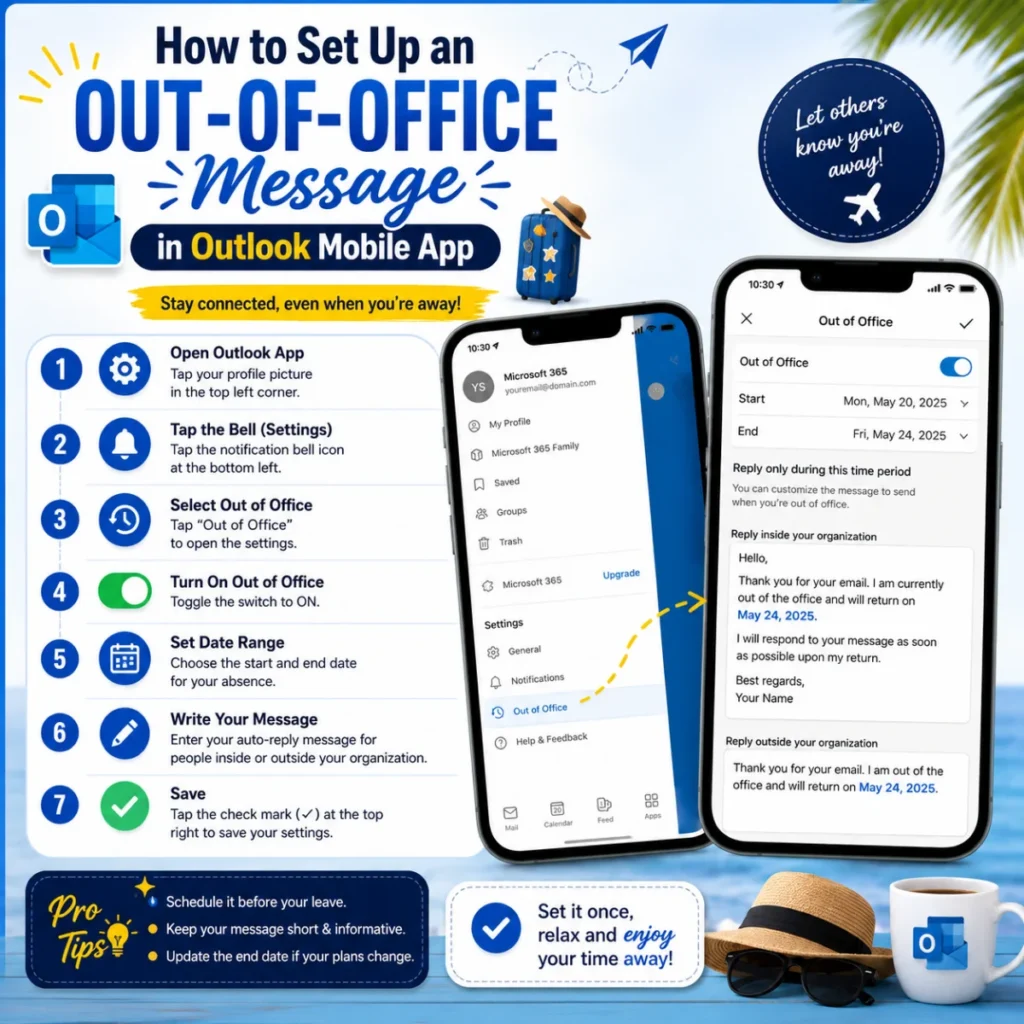
For the Outlook app on iOS and Android:
- Open the Outlook app .
- Tap your profile icon in the top-left corner .
- Tap the gear icon (Settings) at the bottom-left .
- Select the email account you want to configure .
- Tap Automatic replies .
- Switch the toggle to On .
- If you want to schedule your reply, check Reply during a time period and set your start and end dates .
- Type your message .
- Save by tapping the checkmark .
How to Set Up Out of Office on Outlook Calendar
You can also set an out-of-office status directly on your Outlook calendar:
- Open Outlook Calendar on any version .
- Create a new event on the days you’ll be unavailable .
- Set the event to All day or a specific time period .
- In the Show as option, select Out of Office .
- Add a title and any additional details .
- Click Save .
Out-of-Office Message Templates
Standard Professional Template
“Thank you for your email. I am currently out of the office and will return on [Date]. I will respond to your message as soon as possible upon my return. For urgent matters, please contact [Name] at [Email] or [Phone].”
Internal Team Template
“Hi team, I’ll be on leave from [Date] to [Date]. [Name] will handle my existing projects while I’m away. For urgent issues, check our project folder or reach out to [Name]. Otherwise, we can catch up when I return.”
Conference or Business Travel Template
“Thanks for reaching out! I’m currently at [Conference Name] from [Date] to [Date] with limited email access. If you need immediate assistance, please contact [Name] at [Email]. I’ll be back in the office on [Date] and will respond to your message then.”
Networking or New Business Template
“I’m out of the office attending [Conference Name] from [Date] to [Date]. Will you be there too? I’d love to connect. Our company will be at booth #[Number]—feel free to stop by! Looking forward to hearing from you.”
Content Promotion Template
“I am out of the office until [Date]. Fortunately, our resources never take time off! Check out this ebook/infographic on [Topic] that I think you’ll enjoy. I’ll get back to you as soon as I return.”
Funny/Clever Template
“I heard winter was coming, so I decided to go to [Warm Location]. I’ll be sipping cocktails on the beach until [Date] and will not be checking email. Stay warm!”
Tips for Effective Out-of-Office Messages
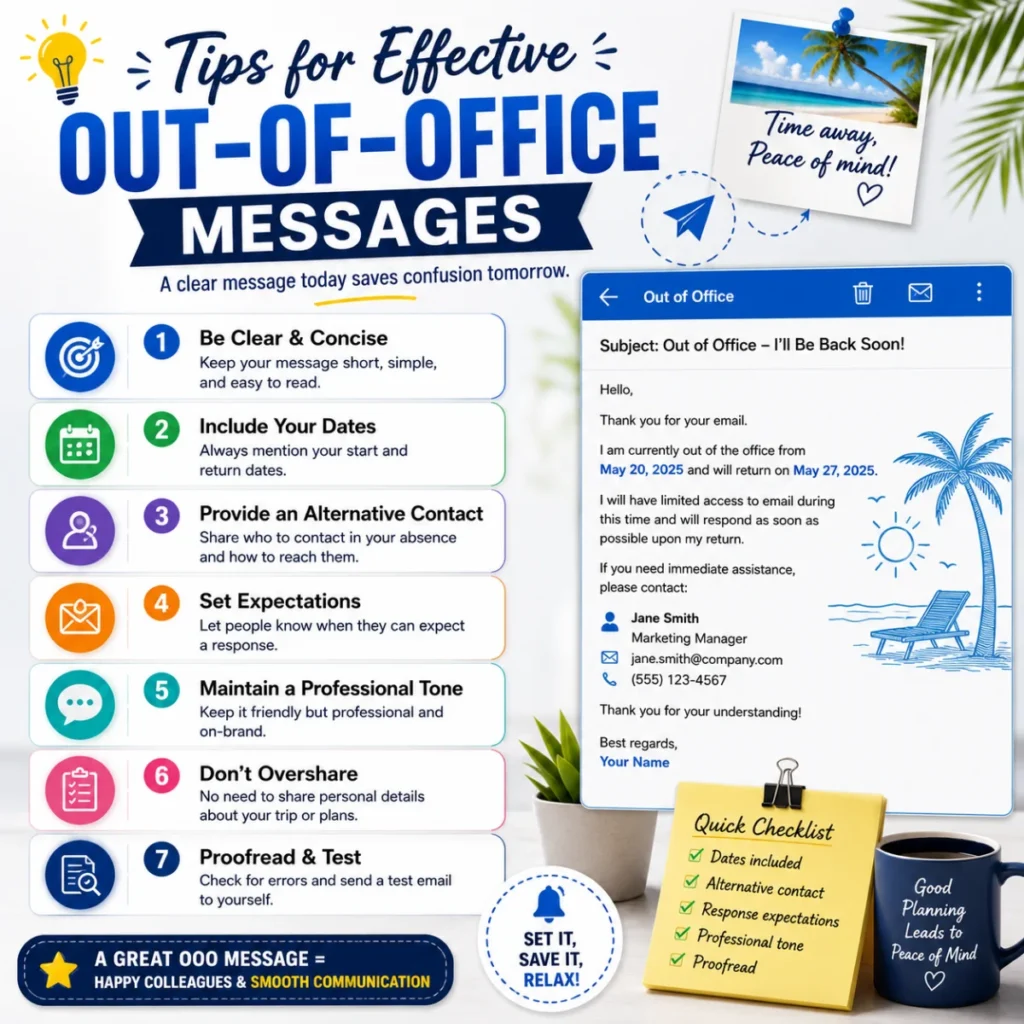
Keep It Clear and Concise
Your message should be brief and to the point. Include essential information such as your return date and alternative contacts .
Provide Alternative Contacts
List the names and email addresses of colleagues who can assist in your absence . This prevents unnecessary follow-ups and ensures urgent matters are handled.
Set Expectations
Clearly state when you will be able to respond to emails upon your return . If you won’t be checking email at all, say so.
Customize Internal and External Messages
Internal messages can be more informal, while external messages should maintain a professional tone . This allows you to provide different levels of detail depending on who’s emailing you.
Use Accessibility-Friendly Formatting
Write in plain text and use sans serif fonts like Arial or Calibri in size 12 or larger . Avoid excessive use of bolded, italicized, or underlined text, as this can make your message difficult to read . Avoid placing images in your out-of-office message, as they are often blocked or may get flagged as spam .
Test Your Setup
Send a test email to yourself to ensure your out-of-office reply is working correctly .
Add “Automatic Replies” to Your Quick Access Toolbar
To make future setup faster:
- Go to File > Options > Quick Access Toolbar .
- From the drop-down menu, select Automatic Replies .
- Click Add, then OK .
Troubleshooting Common Issues
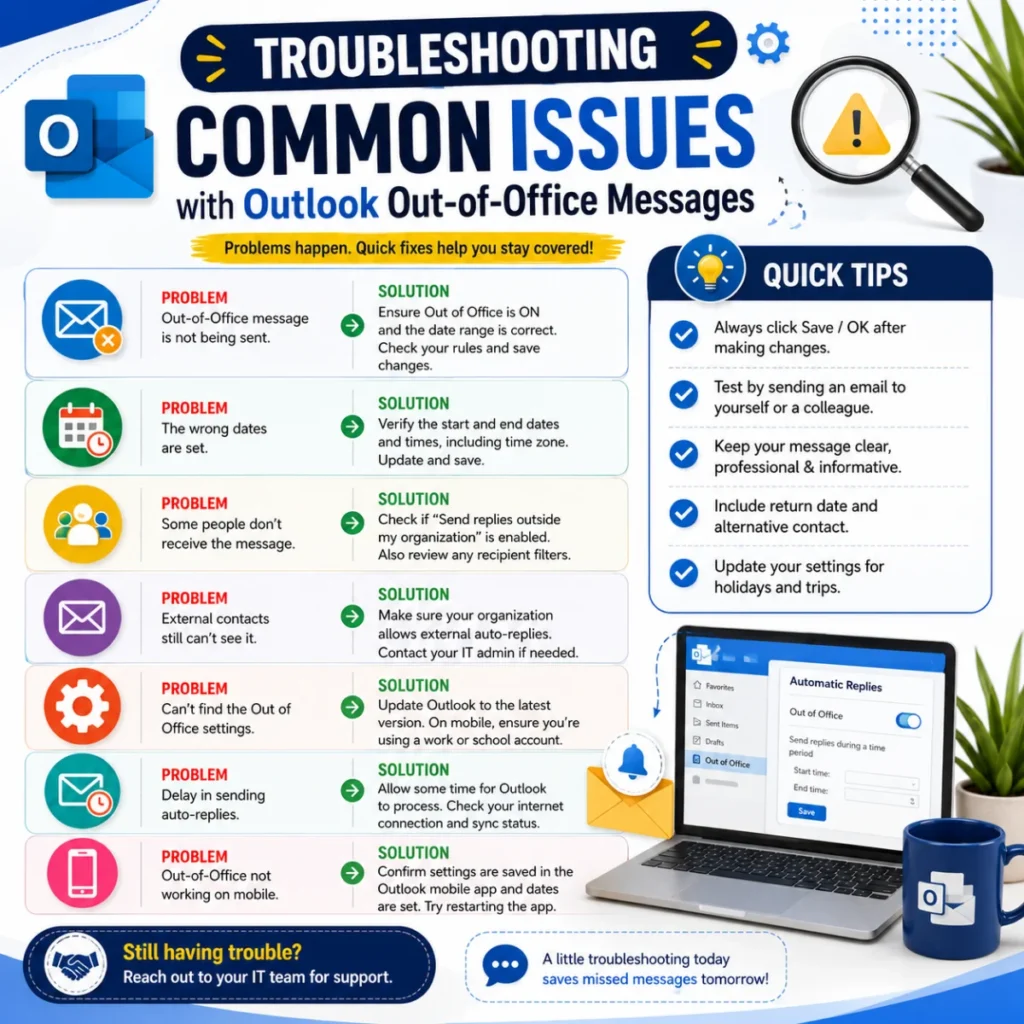
My Out-of-Office Message Isn’t Working
If your automatic replies aren’t sending, here are possible causes:
- Check your account type: POP or IMAP accounts may not support the Automatic Replies feature. Upgrading to a Microsoft 365 or Exchange account enables full support .
- Update Outlook: Check for any available updates for your version of Outlook .
- Try Outlook Web App: If the desktop app fails, try setting up automatic replies through Outlook on the Web (http://outlook.office.com) to narrow down if the issue is with the app or the account .
Calendar Not Blocked
If you want to prevent others from booking meetings during your absence, enable the Block my calendar for this period option when setting up your automatic replies . You can also Decline and cancel my meetings during this period to discard new and existing meetings .
FAQs
What should I include in an out-of-office message in Outlook?
Include the dates of your absence, your reply expectations, and a contact person for urgent matters . A professional message like “Thank you for your email. I am currently out of the office and will return on [Date]. For urgent matters, please contact [Name]” works well .
How long does it take for Outlook to send an out-of-office reply?
Outlook sends automatic replies immediately to each sender, but only once per sender per absence period. This means if the same person emails you multiple times, they’ll only receive the automatic reply once.
Can I set up different messages for internal and external senders?
Yes. Both the desktop and web versions of Outlook allow you to create separate messages for people inside and outside your organization .
Does the out-of-office message work on mobile?
Yes. The Outlook mobile app for iOS and Android supports automatic replies. Tap your profile icon, select the gear icon, choose your account, and tap Automatic replies .
What if I’m using POP or IMAP?
POP and IMAP accounts may not support automatic replies. If you switch to a Microsoft 365 or Exchange account, the feature becomes fully available .
Can I set an out-of-office message in Microsoft Teams?
Yes. Microsoft Teams and Outlook are connected. Setting an out-of-office in Teams automatically appears in Outlook and vice versa. Go to your profile picture, select Set Status Message, choose Schedule out of Office, and enable Turn on automatic replies .
Conclusion
Setting up an out-of-office message in Outlook is a straightforward process that can significantly improve your email management and protect your time away from work . Whether you’re using the desktop app, web version, or mobile app, the steps are simple and the benefits are clear. A well-crafted message manages expectations, directs people to the right colleague, and preserves your sanity when you return.
The most common mistake people make is forgetting to turn it on—or leaving it on too long. Set a specific time range for your automatic replies to ensure they turn off automatically when you return . And remember, the best out-of-office message is the one that communicates exactly what people need to know—no more, no less.

Hamid Mehmood is a passionate content creator dedicated to making words, messages, and online expressions easy to understand. He enjoys creating clear, helpful content that helps readers discover meanings and communicate with confidence.