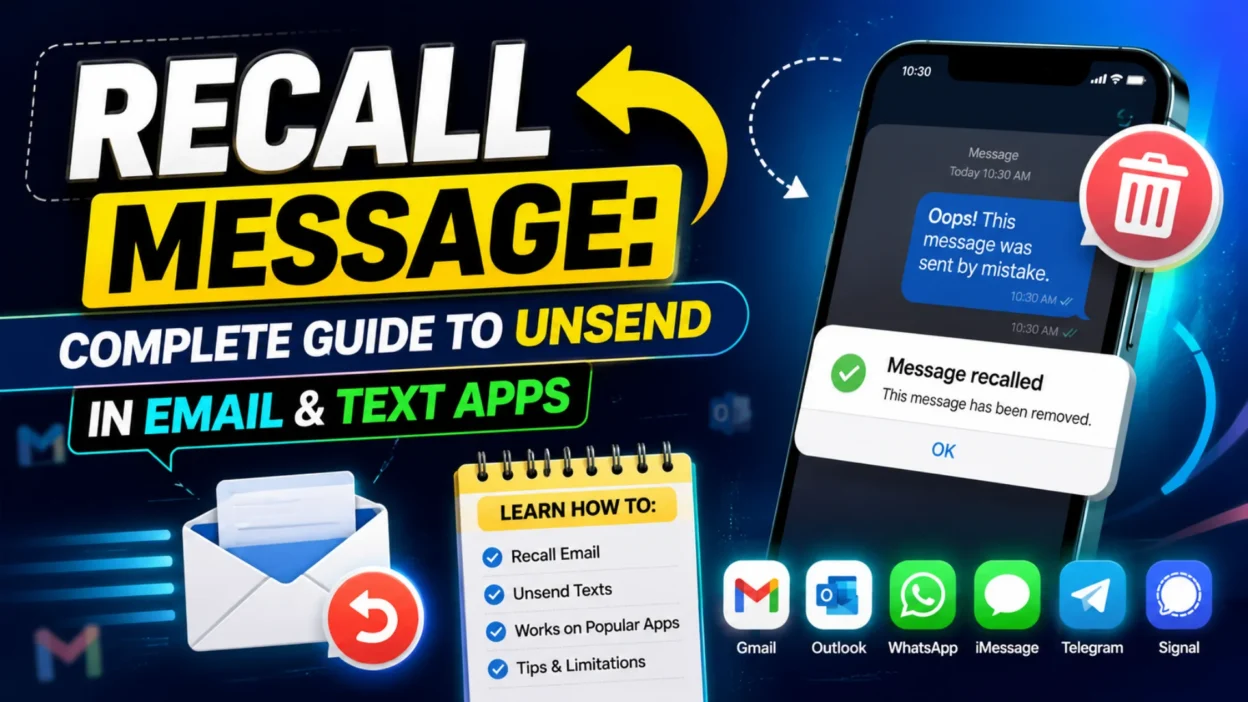
You hit send and immediately realize your mistake — wrong attachment, embarrassing typo, or message sent to the wrong person. The panic sets in, and you frantically search for a way to take it back. This experience is universal in the digital age, and the good news is that you often have options.
A “recall message” feature lets you undo or retract a sent message before the recipient reads it. However, the effectiveness depends heavily on the platform you’re using. Email clients like Outlook and Gmail offer different approaches, while modern messaging apps have their own rules. This guide explains how message recall works across major platforms, what you can realistically expect, and the steps to take when you need to unsend.
What “Recall Message” Actually Means
The term “recall message” covers two distinct features depending on where you’re trying to use it. Understanding this distinction saves you from disappointment.
Email Recall (Microsoft Outlook)
In Outlook, the “Recall This Message” feature attempts to delete or replace an email after you’ve sent it. The feature only works reliably when both sender and recipient use Microsoft 365 or Exchange accounts within the same organization . It’s important to understand that recalling an email does not remove the message from the sender’s “Sent Items” folder .
Undo Send (Gmail and Outlook Delay)
Gmail offers an “Undo Send” feature that gives you a limited window (5 to 30 seconds) to cancel sending right after you hit send . This is not a true recall after delivery. Similar delay features exist in Outlook mobile and Outlook on the Web .
Text Message Recall (RCS and Messaging Apps)
Modern texting apps also offer recall features. Google Messages introduced “Delete for Everyone” for RCS chats in mid-2025, giving a 15-minute window to recall a message . WhatsApp offers up to 2 days, while Telegram permits unlimited silent deletions for private chats . Traditional SMS, however, cannot be recalled once delivered .
How to Recall Messages in Outlook
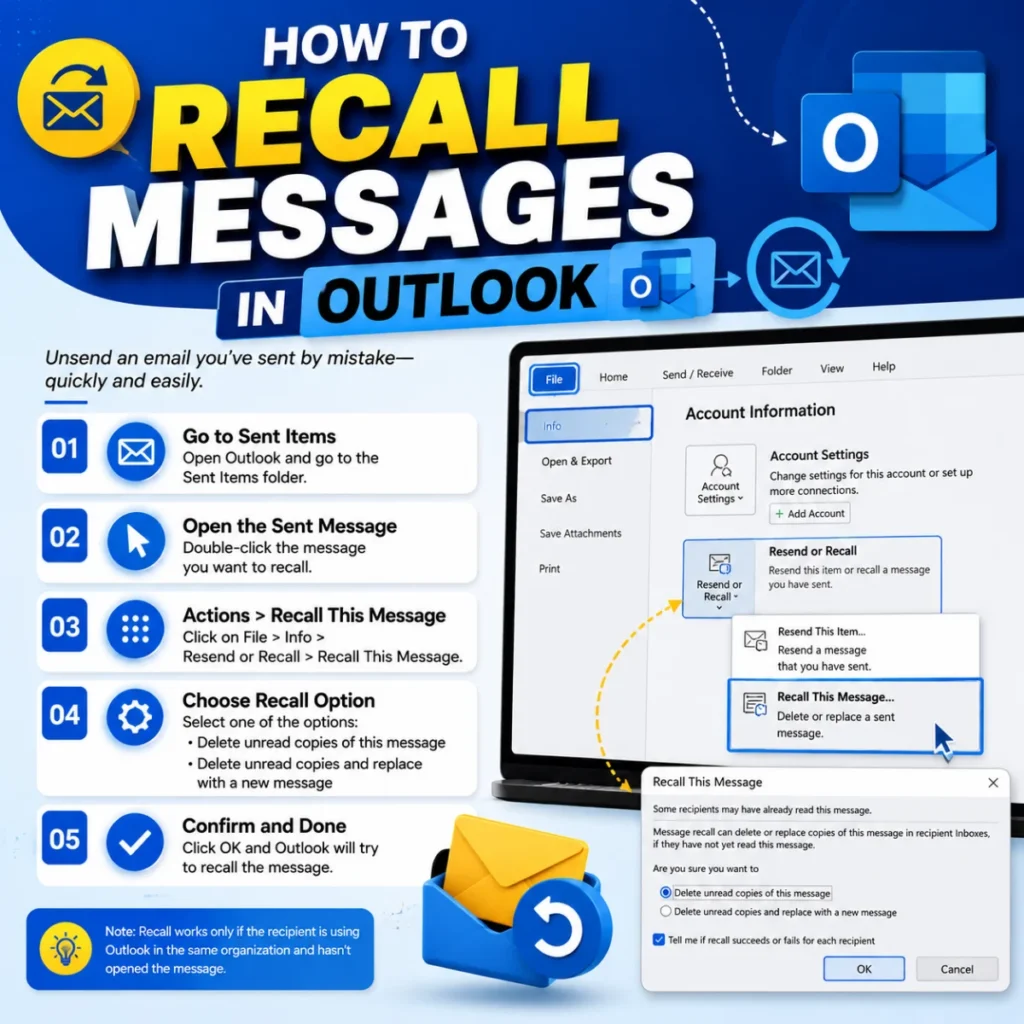
The recall feature in Outlook works best when certain conditions are met. Here’s what you need to know.
When Outlook Recall Works
Message recall in Outlook has specific requirements:
- Both sender and recipient must use Microsoft 365 or Exchange accounts
- Both parties must be within the same organization
- The recipient must not have already read the message (though cloud-based recall may still work with some read messages)
- The recall attempt must happen within 365 days of sending
- The message must still be in the recipient’s Inbox (not moved by rules)
How to Recall in Classic Outlook (Windows)
Follow these steps to recall an email in classic Outlook :
- Open Outlook and go to your Sent Items folder
- Double-click the message you want to recall (opening it in a separate window is essential; the option won’t appear from the reading pane)
- Click on the Message tab
- Select Actions from the menu, then choose Recall This Message
- In the pop-up window, select either:
- Delete unread copies of this message
- Delete unread copies and replace with a new message
- Check Tell me if recall succeeds or fails to receive a report
- Click OK
How to Recall in New Outlook (Windows)
In the New Outlook for Windows :
- Go to Sent Items
- Double-click the message to open it separately
- Click the … (More actions) button on the ribbon
- Select Recall Message
- Click OK
- Check your inbox for a Message Recall Report
How to Recall in Outlook on the Web
For Outlook on the Web (http://outlook.office.com) :
- Go to Sent Items
- Open the email you want to recall
- Click the … (More actions) icon above the message
- Select Recall Message
- Click OK to confirm
- Watch for a Message Recall Report in your inbox
What Happens When You Recall an Outlook Message
The outcome depends on several factors :
ScenarioResultRecipient hasn’t read, and automatic processing is onOriginal message is deleted silentlyRecipient hasn’t read, and automatic processing is offRecipient may see a recall request and can choose whether to deleteRecipient has already read the messageRecall fails; both messages remainMessage was moved from Inbox by a ruleRecall failsRecipient uses Outlook on mobile or webRecall may fail (though cloud-based recall improves this)
How to Unsend in Gmail
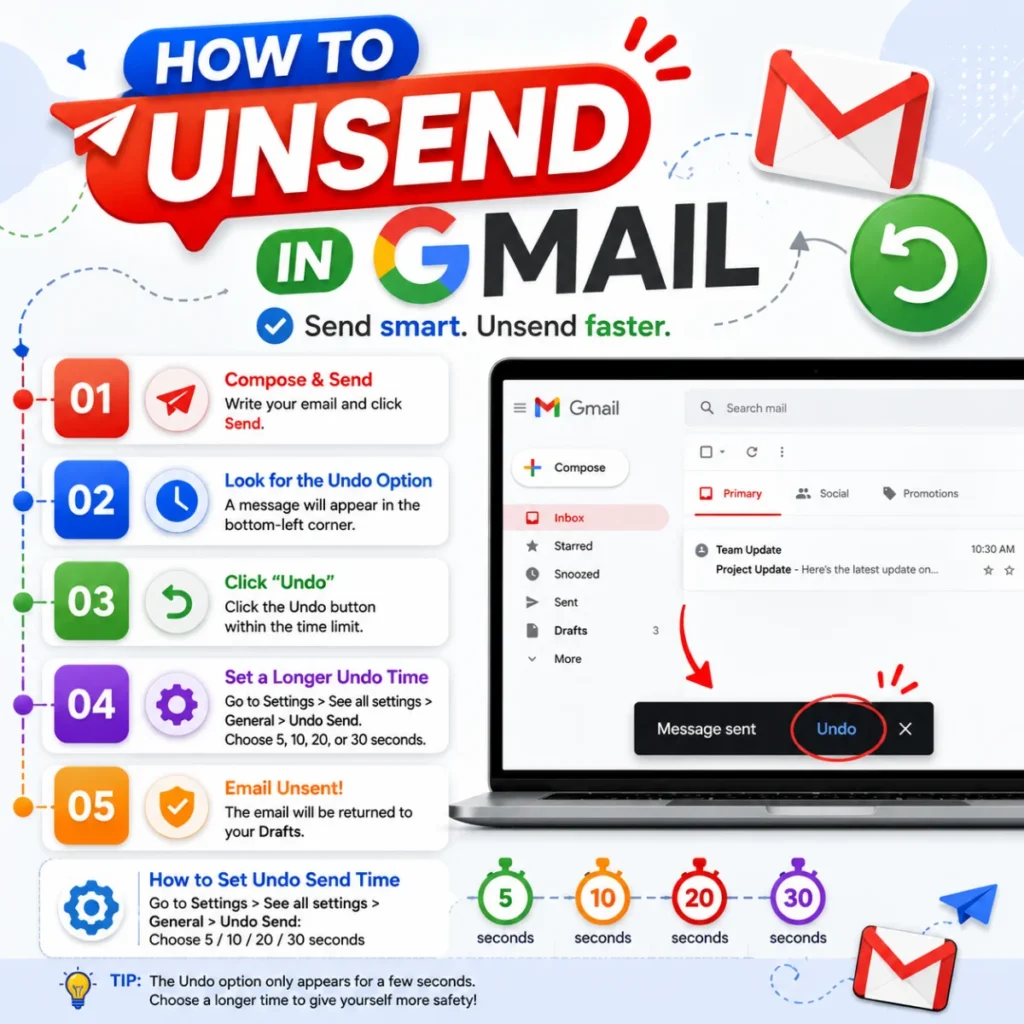
Gmail’s approach is different from Outlook — it’s based on a cancellation window rather than a recall request.
How to Enable Undo Send in Gmail
- Click the gear icon in the top-right corner
- Select See all settings
- In the General tab, find Undo Send
- Set the Send cancellation period (5, 10, 20, or 30 seconds)
- Click Save Changes
How to Use Undo Send
- Compose and send your email as usual
- Immediately after sending, look for a notification in the bottom-left corner that says “Message Sent”
- Click Undo within your set time window
- The email reopens for editing or deletion
Gmail Undo Send on Mobile
On the Gmail mobile app, the Undo notification appears briefly at the bottom of the screen, but the cancellation period is fixed at around 5 seconds .
Limitations of Gmail Undo Send
- Only works within the cancellation window (maximum 30 seconds)
- Cancels sending before delivery — it doesn’t recall an already delivered message
- If you close the app immediately after sending, you may miss the undo opportunity
How to Recall Text Messages
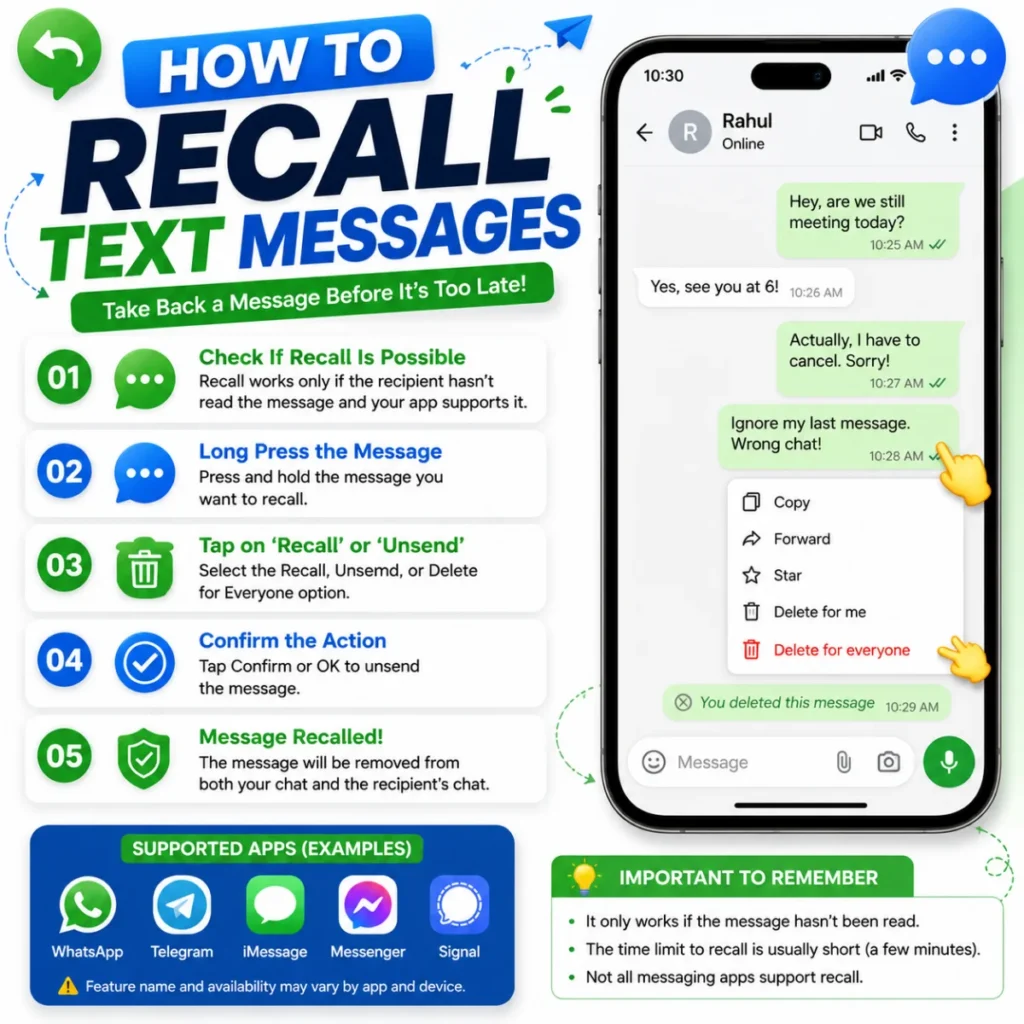
Recalling texts depends on the messaging platform you’re using.
Google Messages (RCS Delete for Everyone)
Google introduced “Delete for Everyone” for RCS chats in mid-2025 :
- Launch Google Messages
- Find the conversation with the message you want to recall
- Tap and hold the message until a menu appears
- Tap the Trash icon
- Choose Delete for everyone
- The chat shows “Message deleted” where your text was
Requirements:
- Both users must have RCS enabled
- You have a 15-minute window to recall
- The recipient sees a “Message deleted” placeholder
WhatsApp Message Recall
WhatsApp is more generous with its recall window :
- Open the chat and long-press the message
- Tap the Delete icon
- Select Delete for everyone
- The recipient sees “This message was deleted”
Key features:
- Up to 2 days to delete
- Recipient knows a message was deleted
- Works for individual and group chats
Facebook Messenger Recall
Messenger offers a shorter window :
- Open Messenger and find your message
- Long-press the message
- Tap Remove
- Choose Unsend for everyone
- A small note appears: “You unsent a message”
Key features:
- 10-minute window to unsend
- Recipient sees that you unsent a message
- Works for individual and group chats
Telegram Recall
Telegram has unique capabilities :
- Long-press the message
- Tap Delete
- Select Delete for everyone
- No trace remains in private chats
Key features:
- Unlimited time to delete
- No placeholder left behind (private chats)
- Option to delete all messages in a chat
Traditional SMS Cannot Be Recalled
Standard SMS and MMS cannot be unsent. Once delivered, the message lives on the recipient’s device. There’s no central server to delete it from .
Key Limitations to Understand
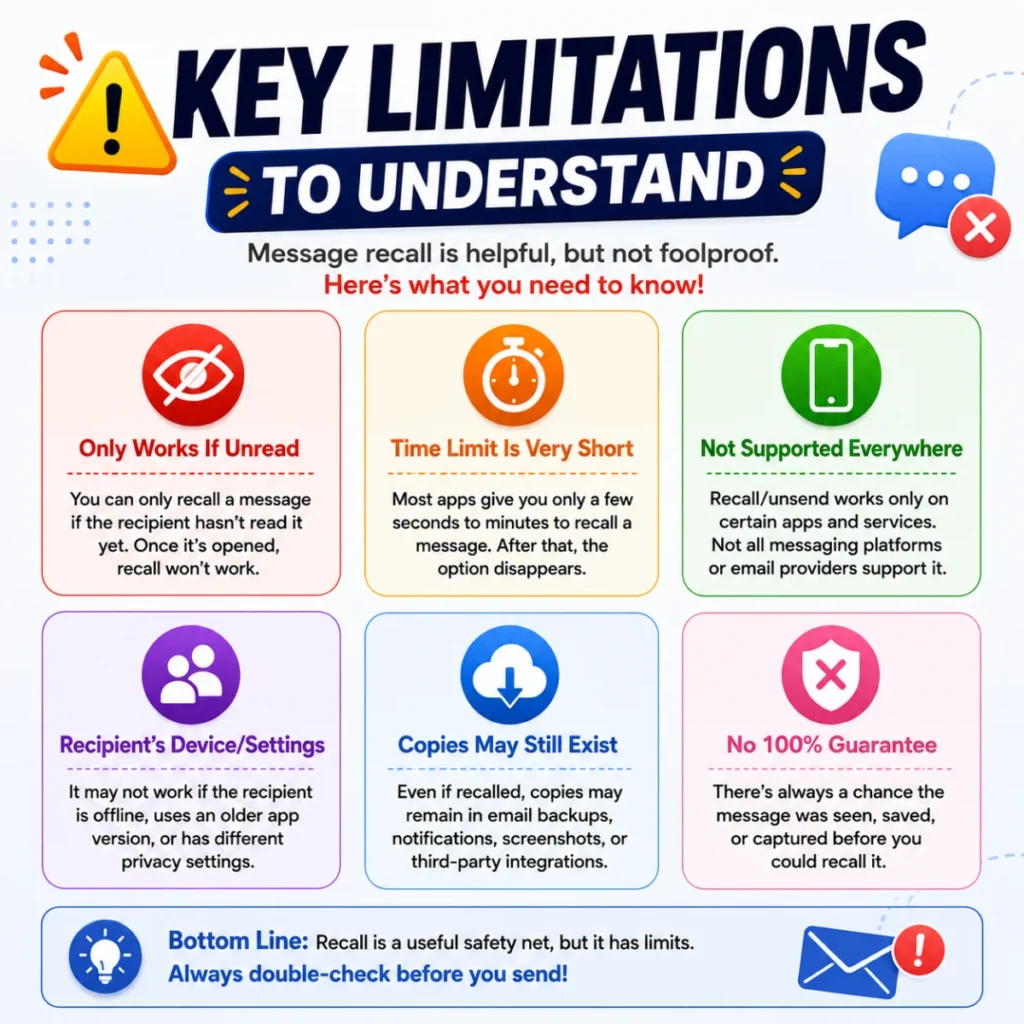
When Outlook Recall Fails
Outlook recall can fail in these situations :
- The recipient has already read the message (older Outlook versions)
- The recipient uses Gmail, Yahoo, or another external email service
- The recipient’s Outlook is configured to automatically process requests
- The recipient moved the message out of their Inbox using rules
- The recipient opens the original message before the recall request
- The recipient is not using Outlook at all
Cloud-Based Recall Improvements
Microsoft introduced Cloud-Based Message Recall in 2023 for Microsoft 365 users. This improvement allows recall attempts even when recipients read the email in the Reading Pane or have certain settings that previously would have caused failure . However, it still works primarily within the same organization and domain .
The “Undo Send” vs. “Recall” Difference
The key distinction: Gmail’s Undo Send cancels sending before delivery. Outlook’s Recall attempts to delete after delivery. Undo Send is more reliable but has a much shorter time window.
FAQs
Can you recall a message sent to Gmail?
No, Outlook’s recall feature does not work for messages sent to Gmail, Yahoo, or other personal email addresses. The recall only works within the same Microsoft 365 or Exchange organization . Gmail’s own “Undo Send” feature can cancel sending within 5-30 seconds of hitting send, but it is not a recall after delivery.
How long do I have to recall a message?
It depends on the platform:
- Outlook (Exchange): Up to 365 days
- Gmail Undo Send: 5-30 seconds
- Google Messages (RCS): 15 minutes
- WhatsApp: Up to 2 days
- Facebook Messenger: 10 minutes
- Telegram: Unlimited in private chats
Why can’t I recall a message in Outlook?
Several reasons could explain this :
- You’re using the New Outlook app, where the feature may not be fully available
- The message was sent to an external recipient (Gmail, Yahoo, etc.)
- You don’t have a Microsoft 365 or Exchange account
- The recipient’s Outlook doesn’t support recall
- The recall option may not appear in the reading pane (you need to open the message in a separate window)
Can I recall a text message on my Android phone?
Yes, if you use RCS in Google Messages with the “Delete for Everyone” feature or a supported third-party app like WhatsApp or Telegram. However, standard SMS messages cannot be recalled once delivered .
What happens when I recall a message in Outlook?
The successful, the original message is deleted from the recipient’s mailbox, and they may receive a notification that you deleted it . If you chose “replace with new message,” the edited version is delivered instead. If you check the “Tell me if recall succeeds or fails” box, you receive a Message Recall Report detailing the outcome for each recipient .
Conclusion
Recalling a message is rarely a guaranteed solution. Email recall in Outlook works primarily within organizations using Exchange or Microsoft 365, while Gmail’s Undo Send is reliable but limited to a very short window. For text messaging, RCS apps offer various recall options with different time limits — from WhatsApp’s generous 2-day window to Telegram’s unlimited deletion for private chats.
The most effective way to avoid needing message recall is to double-check your emails before sending. Outlook and Gmail both offer the option to delay sending emails, giving you a built-in buffer to catch mistakes. For texts, RCS and supported apps provide more control, but traditional SMS remains permanent once delivered. When an embarrassing message does slip through, a heartfelt apology often works better than relying on an unreliable technical fix.

Hamid Mehmood is a passionate content creator dedicated to making words, messages, and online expressions easy to understand. He enjoys creating clear, helpful content that helps readers discover meanings and communicate with confidence.