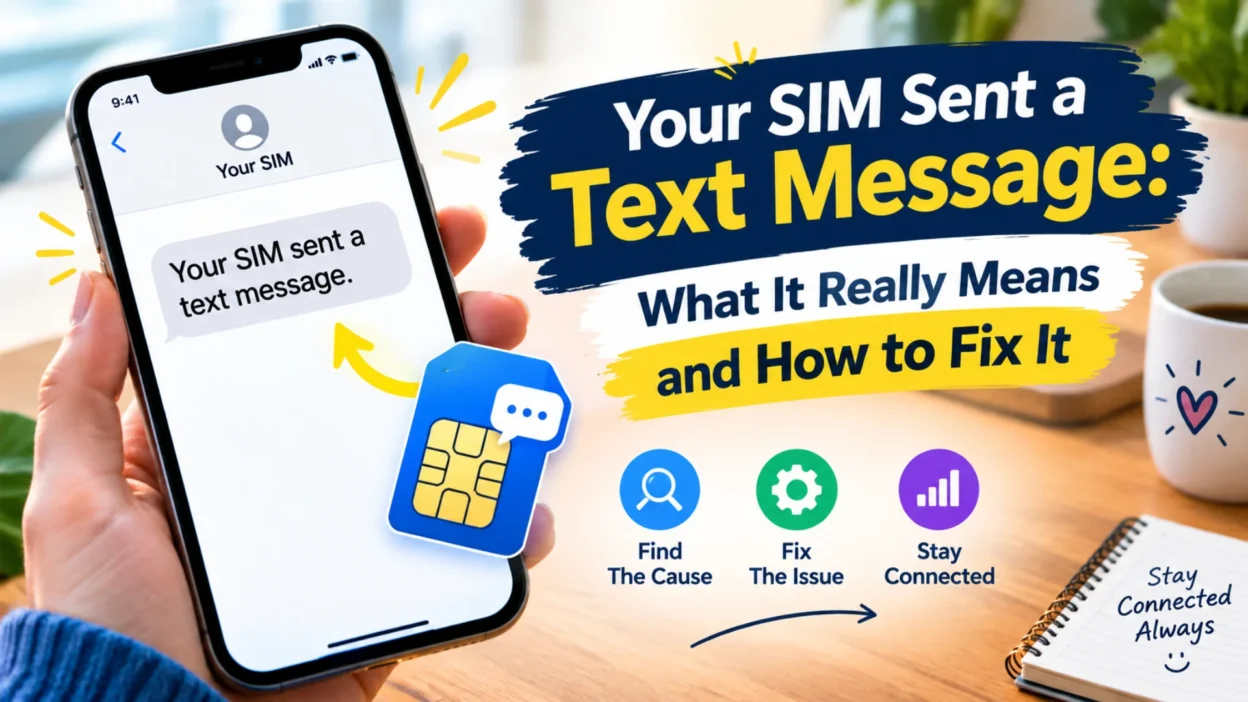
You’re scrolling through your phone or it’s sitting idle on the table, and suddenly a notification appears: “Your SIM sent a text message.” Your first thought is panic. Did someone hack my phone? Is my carrier charging me for texts I didn’t send? Is my SIM card malfunctioning?
Take a breath. This message is far more mundane than it sounds. It’s not a sign of a hack, and it’s not a scam. It’s your iPhone doing routine housekeeping, and the notification is just a poorly worded status update. This guide explains exactly what this message means, why it appears, and how to make it stop.
What “Your SIM Sent a Text Message” Actually Means
The message is a notification from your iPhone, not from a hacker or a malicious app. It means your SIM card is attempting to communicate with your wireless carrier’s update server . Your phone periodically checks in with your carrier to receive updates to carrier settings—things like network configurations and APN details that help your phone connect properly.
Normally, this process happens silently in the background. You never see it. But sometimes, the communication gets stuck. Your SIM keeps trying to send a message to your carrier’s server, and it either doesn’t get a response or the response fails . When that happens, your iPhone displays the “Your SIM sent a text message” pop-up to let you know what’s happening. It’s essentially a status notification, not an error that requires immediate action.
The message is harmless. It doesn’t mean your phone has been compromised, and it doesn’t mean you’re being charged for mystery texts. It’s simply a signal that your phone is having trouble completing a routine update check.
Why This Message Appears
Several factors can trigger this notification. Understanding the cause helps you choose the right fix.
Carrier Settings Updates
The most common cause is a carrier settings update. When your carrier releases new network configurations, your iPhone needs to download and apply them. The SIM sends a message to the carrier’s server to request the update . If the request fails or gets stuck in a loop, the pop-up appears repeatedly .
Inactive or Duplicate SIM Cards
If your iPhone has an inactive SIM or eSIM with the same phone number as your active SIM, it can cause confusion. The phone may try to activate services through both, leading to repeated attempts to contact the carrier . This is especially common after upgrading to a new iOS version or setting up a new eSIM .
Network Connectivity Issues
Weak signal, network congestion, or a temporary carrier outage can prevent the SIM from completing its communication with the carrier’s server. When the connection is unstable, the SIM keeps retrying, and the pop-up keeps appearing .
Outdated Carrier Settings or iOS
If your carrier settings are outdated or your iOS version has bugs that affect network communication, the update process may fail repeatedly. Updating both your iOS and carrier settings often resolves the issue .
How to Fix the “Your SIM Sent a Text Message” Pop-Up
Work through these fixes in order. Most people find relief within the first two or three steps.
1. Toggle Airplane Mode
This is the simplest and most effective fix. Turning Airplane Mode on and off forces your SIM to disconnect from the network and reconnect, which clears minor network glitches .
Open Settings, turn Airplane Mode on, wait about 10 seconds, then turn it off again. Alternatively, open Control Center and tap the airplane icon .
2. Restart Your iPhone
A restart refreshes your phone’s network connections and clears temporary software issues. Press and hold the power button and volume up button until you see the power-off slider, then slide to turn off. Wait 30 seconds, then turn your phone back on .
3. Check for Carrier Settings Updates
Your iPhone can manually check for carrier updates. Open Settings, go to General, then tap About. Stay on that screen for about 30 seconds. If an update is available, a prompt will appear asking you to update. Tap Update and wait for the process to complete .
4. Check for iOS Updates
An outdated iOS version can cause network communication problems. Go to Settings, General, and tap Software Update. If an update is available, download and install it. After the update, give your phone a few minutes to complete any activation checks .
5. Remove and Reinsert Your SIM Card
If you use a physical SIM card, it might be slightly loose or poorly seated. Turn off your iPhone first. Use the SIM eject tool or a paper clip to open the SIM tray. Remove the card, check that it’s clean and not damaged, then put it back in the correct orientation. Push the tray back in firmly and turn your phone on .
If you use an eSIM, do not delete it without contacting your carrier first. Deleting an eSIM can leave you without cellular service. Instead, check Settings, Cellular, and confirm the correct plan is active .
6. Reset Network Settings
This is a more thorough fix that clears saved cellular, Wi-Fi, and VPN configurations, then rebuilds them from scratch. It doesn’t erase your photos, apps, or messages, but it will remove saved Wi-Fi passwords, so make sure you know them before proceeding .
Go to Settings, General, Transfer or Reset iPhone, Reset, then Reset Network Settings. Enter your passcode and confirm. Your phone will restart and reconnect to the network .
7. Contact Your Carrier
If none of the above fixes work, the issue is likely on your carrier’s end. Your SIM may need reprovisioning, or there may be an account-level problem preventing the update from completing . Call your carrier’s customer service and explain the issue. They can check your line and SIM activation status and resolve any backend problems.
When to Worry: Distinguishing This Message from a Real Hack
The “Your SIM sent a text message” notification is a standard iOS message, not a scam or malware. However, if you’re seeing other signs, your device may genuinely be compromised. Watch for these red flags:
- Messages you didn’t send appearing in your sent folder
- Unfamiliar apps you didn’t download
- Unusual battery drain or your phone running hot when idle
- High data usage from unknown sources
- Login attempts or password reset emails you didn’t request
If you notice these signs alongside the SIM message, run a security check. On iPhone, go to Settings, Privacy & Security, and review App Privacy Report and Safety Check . Remove any unknown configuration profiles in Settings, General, VPN & Device Management .
FAQs
Is “Your SIM sent a text message” a scam or virus?
No. It’s a legitimate iOS notification, not a scam or virus. Your SIM is trying to communicate with your carrier’s update server .
Will I be charged for the text my SIM sent?
No. These are system-level messages sent to your carrier’s update server, not standard SMS messages that count against your plan .
Why does this message keep appearing repeatedly?
The most common cause is an inactive or duplicate SIM with the same phone number, often triggered after an iOS update or eSIM setup . Toggling Airplane Mode or removing the inactive SIM usually stops it .
Can I just ignore this message?
Yes. The message is harmless and doesn’t affect your phone’s functionality. If it doesn’t bother you, you can dismiss it and move on .
What should I do if I have an eSIM and see this message?
Do not delete your eSIM without contacting your carrier first. Deleting it can leave you without service. Instead, check Settings, Cellular, and confirm your active plan is correctly configured . Toggle Airplane Mode or restart your phone. If the message persists, contact your carrier.
Conclusion
The “Your SIM sent a text message” pop-up looks alarming, but it’s one of the most benign notifications your iPhone can display. It’s just your phone trying to complete a routine carrier update and failing temporarily. In most cases, a quick toggle of Airplane Mode or a simple restart solves the problem.
If the message keeps coming back, it’s usually a sign of a duplicate or inactive SIM, especially after an eSIM setup or iOS update. Removing the inactive line or contacting your carrier for reprovisioning will stop it for good. There’s no need to panic, factory reset your phone, or worry about hackers. Your SIM is just doing its job—it’s the notification that’s a little too dramatic for its own good.

Hamid Mehmood is a passionate content creator dedicated to making words, messages, and online expressions easy to understand. He enjoys creating clear, helpful content that helps readers discover meanings and communicate with confidence.