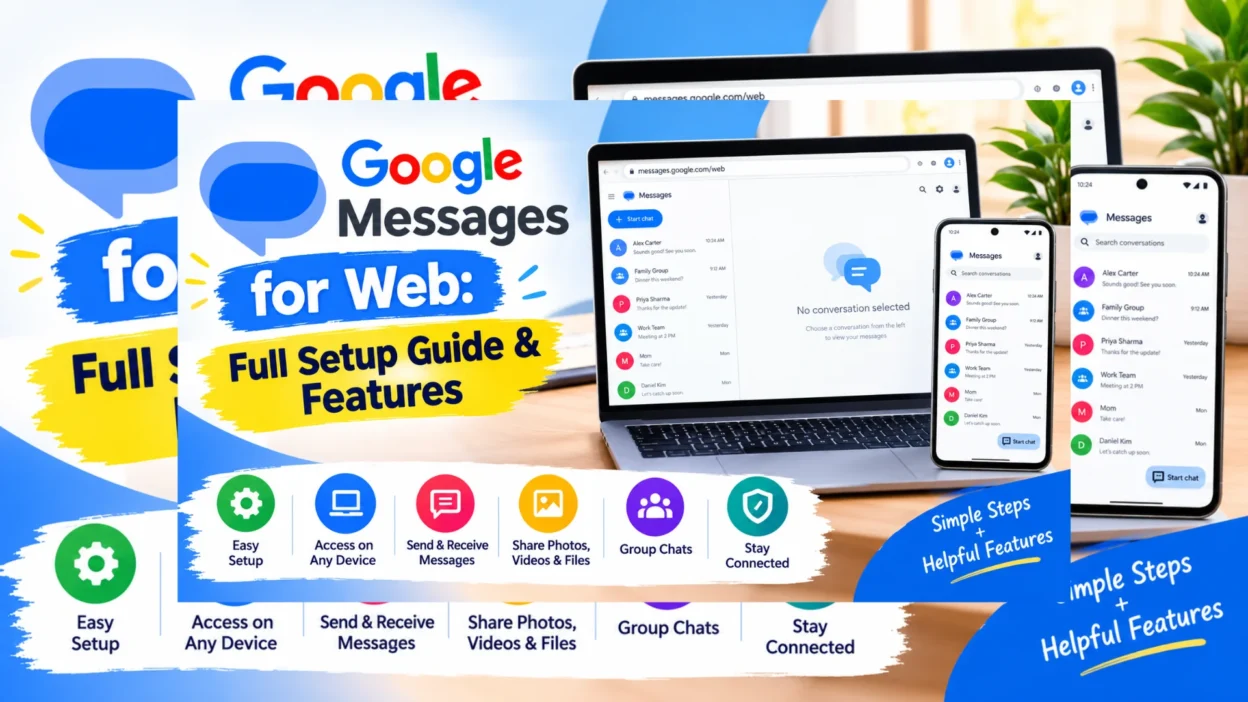
Google Messages for Web is a powerful tool that brings your Android texting experience to your computer screen. Whether you’re at work, studying, or simply prefer typing on a full keyboard, this service lets you send and receive SMS and RCS messages directly from your browser without constantly reaching for your phone.
This guide covers everything you need to know about Google Messages for Web. It includes step-by-step setup instructions, key features, troubleshooting tips, and important details about upcoming changes to how you connect your devices.
What Is Google Messages for Web?
Google Messages for Web is a web application that mirrors the Google Messages app on your Android phone. It displays your conversations, contacts, and messages in your web browser, allowing you to chat from your computer.
The service supports traditional SMS and MMS, plus Rich Communication Services (RCS). RCS brings modern messaging features like read receipts, typing indicators, and high-quality media sharing. This means you get an experience similar to WhatsApp or iMessage, but from your browser.
The web client works by connecting to your phone. When you send a message from your computer, it goes through your phone and your carrier, so standard carrier fees still apply.
How to Set Up Google Messages for Web
Setting up Google Messages for Web is straightforward. The instructions below reflect the recommended method, as the older QR code pairing method is being phased out. In some regions, the QR code method may no longer be available.
Step 1: Get the App on Your Phone
Google Messages is preinstalled on most Android phones. If you don’t have it, download it from the Google Play Store. You’ll also need an Android device running version 5.0 or higher.
Step 2: Open Messages for Web in Your Browser
On your computer, open a supported browser like Chrome, Firefox, Safari, or Edge. Visit the Google Messages for Web page at messages.google.com/web.
Step 3: Sign In with Your Google Account
Click Sign in and enter the same Google Account you use on your phone.
Step 4: Verify the Pairing on Your Phone
Open the Google Messages app on your phone. A dialog box will appear with three emojis. Tap the one that matches the emoji shown on your computer screen. Your phone will vibrate to confirm the pairing is complete.
You can also manually initiate pairing by tapping your profile icon in the app, selecting Device pairing, and following the on-screen instructions.
If the QR code method is still available in your region and you prefer to use it, open the Messages app, go to Device pairing, tap Switch to QR pairing, and scan the QR code displayed on your computer screen. However, note that QR pairing is being phased out and may not be supported in the future.
Important Features and Capabilities
Once connected, you can do most things you can do on the phone app.
Send and Receive Messages
All conversations sync in real-time, and notifications appear in your browser. You can compose new messages, reply to threads, use emojis, stickers, and GIFs, and attach media files.
Pin, Archive, and Manage Conversations
You can pin important conversations at the top, archive or delete threads, and mute chats you don’t need to see right away.
Handle Spam and Blocked Numbers
The web client lets you mark messages as spam and block numbers. If you frequently receive spam, you can manage your blocked list from the overflow menu on a conversation.
Use Dark Theme and Customize Settings
You can switch between light and dark mode and adjust other settings from the overflow menu (three dots) at the top left of the page. The dark theme can reduce eye strain when using the web client in low light.
Security Features
Google Messages for Web includes advanced security features. You can use the Android System Key Verifier to verify message encryption keys via QR codes, helping ensure your private messages are with the right person. Additionally, links in messages flagged as spam are automatically blocked, adding another layer of protection.
Important Upcoming Change: QR Code Pairing Is Being Phased Out
Google is ending QR code pairing for Google Messages for Web and transitioning entirely to Google Account-based sign-in. Google says account-based connections are more stable and improve the user experience across devices.
This means you will need a Google Account to use the service. If you currently use QR codes, you should switch to the account-based method soon. This change also applies to Android tablet users who access Messages through the web app.
What This Means for You
For most users, the transition will be smooth. If you already use your Google Account for other services, you may automatically stay signed in. However, for users on shared or public computers, it will be more important to manually sign out at the end of each session to prevent others from accessing your messages.
Troubleshooting Common Issues
If you’re having trouble connecting or syncing, try these steps:
- Check your internet connection: Both your phone and computer need an active internet connection for the service to work, but they don’t need to be on the same Wi-Fi network.
- Keep the app running on your phone: Google Messages needs to run in the background on your phone to sync messages. Make sure battery optimization or other settings aren’t interfering.
- Update the app: Ensure you have the latest version of Google Messages installed on your phone.
- Restart the app or browser: Sometimes a simple restart can fix the issue.
- Clear your browser’s cache and cookies: Corrupted data can occasionally cause problems.
- Check your Google Account: Make sure you are signed into the same account on both your phone and the computer.
How to Unpair Google Message for Web
If you’ve used a public or shared computer, or no longer want a device connected, you should unpair it.
On a Computer
Open Google Messages for Web, click the menu icon (three dots) at the top left, and select Unpair.
On Your Phone
Open the Messages app, tap your profile icon, select Device pairing, then choose Unpair all computers or tap the delete icon next to a specific computer name.
FAQs
Do I need a Google Account to use Google Messages for Web?
Yes, the account-based sign-in method is becoming mandatory as QR code pairing is phased out. You will need a Google Account to use the web client.
Can I use Google Messages for Web on my Mac?
Yes, you can use Google Messages for Web on a Mac by opening a web browser and going to (messages.google.com/web). It works on Mac, Windows, and Chromebooks.
Is Google Messages for Web free?
Yes, Google Messages for Web is free to use. However, your carrier may charge standard fees for sending SMS messages, just as they would from your phone.
What happens if my phone loses internet connection?
Google Messages for Web will temporarily disconnect until your phone regains internet access. The service relies on a live connection to your phone.
Can I use Google Messages for Web on an iPhone?
No, Google Messages is designed for Android. It does not work as a standalone service on an iPhone.
Can I use Google Messages for Web without a phone?
No, the web client functions as a mirror of your phone’s app. It cannot operate independently. Your phone must be on and connected to the internet for the service to work.
Conclusion
Google Messages for Web is an essential tool for Android users who want to stay connected from their computer. It provides seamless access to your SMS and RCS messages, allowing you to reply quickly and efficiently using a full keyboard. With its clean interface, real-time synchronization, and support for RCS features, the web client delivers a messaging experience that rivals dedicated apps.
The transition to account-based sign-in will make connections more stable and secure. However, it also means it will be more important than ever to manage your sessions on shared computers. With this guide, you have everything you need to set up and master Google Messages for Web.

Hamid Mehmood is a passionate content creator dedicated to making words, messages, and online expressions easy to understand. He enjoys creating clear, helpful content that helps readers discover meanings and communicate with confidence.