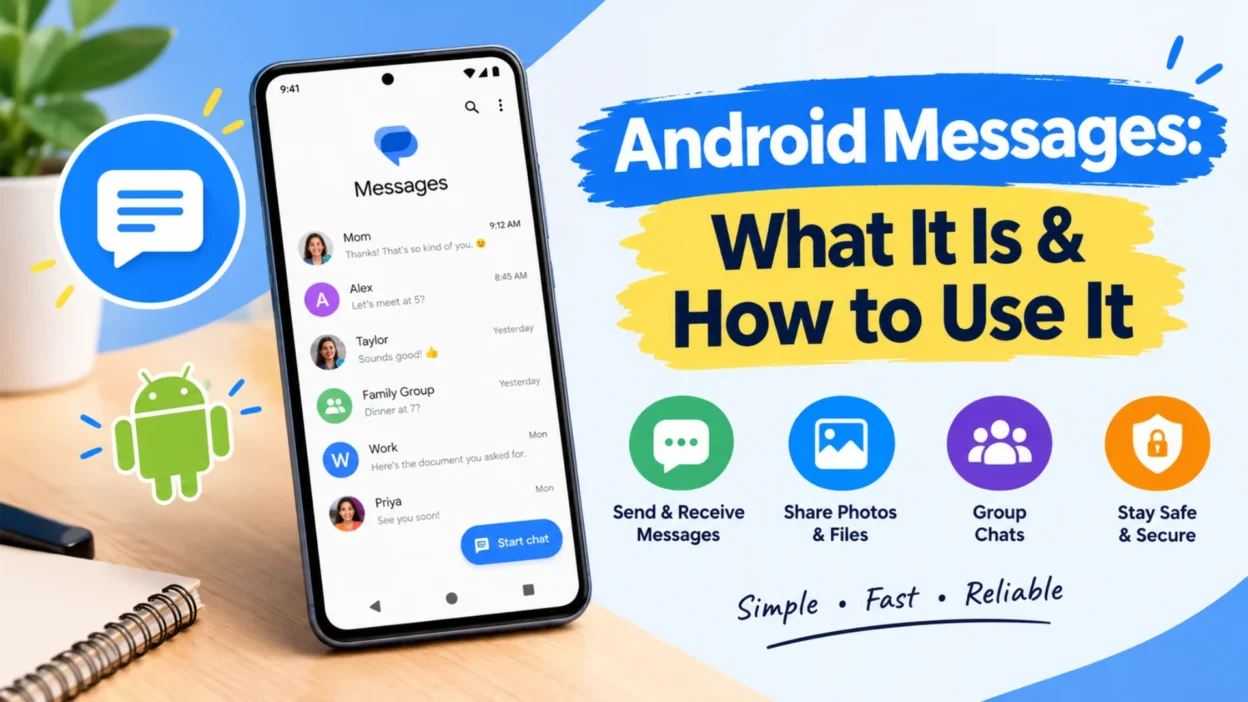
Your phone came with a messaging app you probably didn’t think twice about. It’s just there, sitting on your home screen, waiting for you to tap it when you need to send a text. That app is likely Android Messages, or Google Messages, and it’s more capable than you might realize.
Android Messages is the default messaging system on many Android devices, serving as the primary way to send SMS and MMS texts. It also supports RCS chats, which bring modern features like read receipts and high-quality media sharing to your default texting experience. This guide covers everything you need to know about setting it up, using it effectively, and fixing problems when messages won’t send.
What Is Android Messages?
Android Messages is the messaging app that comes pre-installed on most Android phones, though Samsung devices historically used their own Samsung Messages app instead. It’s a complete messaging management system you can use to send SMS and MMS texts, and it also supports RCS chats, group messaging, and sharing images, videos, and audio files .
The app requires Android 5.0 Lollipop or later, along with a Wi-Fi or data connection for RCS features. Not all phone plans include RCS messaging, and in some cases, you might need to pay an additional fee on top of your regular plan. Some countries don’t support the service at all yet .
Google Messages has become the standard for Android texting. Following the shutdown of Samsung Messages, Google Messages is now the default app on Galaxy smartphones, including the latest models .
How to Set Android Messages as Your Default
When you first open the app, it may ask if you want to set it as your default SMS application. Tap “Set as default SMS app” to confirm. If you don’t see that prompt, you can change it manually.
Open Settings, tap Apps, then Default apps, then SMS app. Select Messages from the list. Once you set the default app, you can use it to send texts from your phone .
How to Send a Message
Sending a text on Android Messages is straightforward. Open the app and tap the new message icon in the bottom right corner. Enter the recipient’s name, phone number, or email address. You can also tap “Create group” to start a group conversation .
After adding the recipient, tap the text field to compose your message. When you’re ready, tap the send button. If you want to schedule a message for a specific time, hold down the send button instead of tapping it. A panel will appear with scheduling options, and after selecting your time, tap send again .
Understanding RCS Chats
RCS, or Rich Communication Services, is what makes Android Messages feel modern. It’s an upgrade over traditional SMS and MMS that brings features like typing indicators, read receipts, message reactions, and the ability to send high-quality photos and videos .
How to Turn On RCS
Open Google Messages and tap your profile picture in the top right. Select Messages settings, then RCS chats. Enable the toggle to turn on RCS chats. You may need to verify your phone number, which involves following on-screen instructions .
Once enabled, the status should change to “Connected.” If it says “Setting up,” wait a few seconds. If it stays disconnected, check that you have an active data or Wi-Fi connection, because RCS requires one to work. Without a data connection, your phone will fall back to SMS .
RCS Requirements
RCS works best when both people in a conversation have it enabled. If you’re texting someone without RCS, your messages automatically send as SMS or MMS. You’ll notice the input box changes from “Chat message” to “Text message” when this happens. Google Messages also displays a lock icon in conversations that are end-to-end encrypted via RCS .
How to Fix Text Messages That Won’t Send
When your texts stop sending, the cause is usually one of a few common issues.
Check Your Signal and Connection
A weak or intermittent connection can halt outgoing texts. Move to a location with better reception. If you’re on Wi-Fi, make sure it’s working, because RCS messages need a data connection .
Restart Your Phone
A simple restart can clear temporary glitches at the operating system level. Power your phone off completely, wait about 30 seconds, and turn it back on. Give it time to reconnect before trying again .
Clear the Messages Cache
A corrupted cache can prevent the app from working properly. Go to Settings, Apps, Messages, Storage, and select Clear cache. Labels may vary depending on your Android version .
Check Your Default SMS App
If your phone isn’t using Google Messages as the default, texts might behave unexpectedly. Go to Settings, Apps, Default apps, SMS app, and select Messages .
Verify Contact Information
Outdated or mistyped numbers in your contacts can cause sending failures. Review the contact card for the person you’re trying to reach and confirm the number is correct .
Check for Carrier Issues
Mobile carriers occasionally experience network trouble. If calls are also failing, the issue is likely on the carrier’s end. Check your carrier’s website or a service status site for outages .
Managing Notifications and Privacy Settings
Android Messages offers several settings worth adjusting for a better experience.
You can control how you receive notifications by tapping your profile picture, then Settings, then Notifications. From there, you can enable or disable incoming message alerts and outgoing message sounds .
Google Messages also shares your Google Account profile, including your name and picture, with people you message. You can limit this sharing by opening the app, tapping your profile, then Your profile, and adjusting the “Show name and picture” setting to “No one” or “Only your contacts” if you prefer more privacy .
Multimedia settings let you control whether images and videos download automatically. If you’re on a limited data plan, you can disable auto-download for MMS or turn it off while roaming. Go to Profile picture, Settings, Advanced to find these options .
Customizing Chat Themes and Backgrounds
Google Messages now supports custom chat themes and backgrounds, a feature users had requested for years. You can personalize individual conversations without affecting how they appear to the other person. The theme remains private to you .
To change a chat theme, open an RCS conversation and tap the three-dot icon in the top right. Select “Chat theme” from the menu. You can choose a color for your messages and set a custom background from your gallery. Tap Apply to save the changes .
FAQs
What is the difference between Android Messages and Google Messages?
Android Messages and Google Messages refer to the same app. Google Messages is the official name, while Android Messages is a common informal name. Samsung devices previously used Samsung Messages, but Google Messages is now the standard following Samsung Messages’ shutdown .
Why won’t my Android send text messages?
Common causes include weak signal, a loose SIM card, a corrupted app cache, or a carrier outage. Restarting your phone, clearing the Messages cache, and checking your default SMS app usually resolves the issue .
What is RCS and do I need it?
RCS is an upgrade over SMS that adds typing indicators, read receipts, and high-quality media sharing. You don’t need it, but enabling it improves your messaging experience when texting others who also have RCS. Without it, you still send regular SMS and MMS texts .
How do I schedule a text on Android Messages?
Compose your message, then hold down the send button instead of tapping it. A scheduling panel appears where you can select the date and time. Tap send again to confirm .
Can I use Android Messages without a SIM card?
RCS chats may continue to work for up to 14 days after removing a SIM card, but standard SMS and MMS require an active SIM. For long-term use without a SIM, you’ll need a data connection and RCS support .
Conclusion
Android Messages is more than a basic texting app. It’s a full messaging platform that handles SMS, MMS, and RCS conversations, with features that rival dedicated messaging apps. Understanding how to set it up properly, enable RCS, and troubleshoot common issues helps you get the most out of your phone’s default texting experience.
Most problems with Android Messages come down to signal, settings, or carrier issues. Working through the troubleshooting steps in order usually resolves them. Once everything is set up correctly, you have a reliable way to stay in touch with anyone, whether they’re on Android or iPhone.

Hamid Mehmood is a passionate content creator dedicated to making words, messages, and online expressions easy to understand. He enjoys creating clear, helpful content that helps readers discover meanings and communicate with confidence.