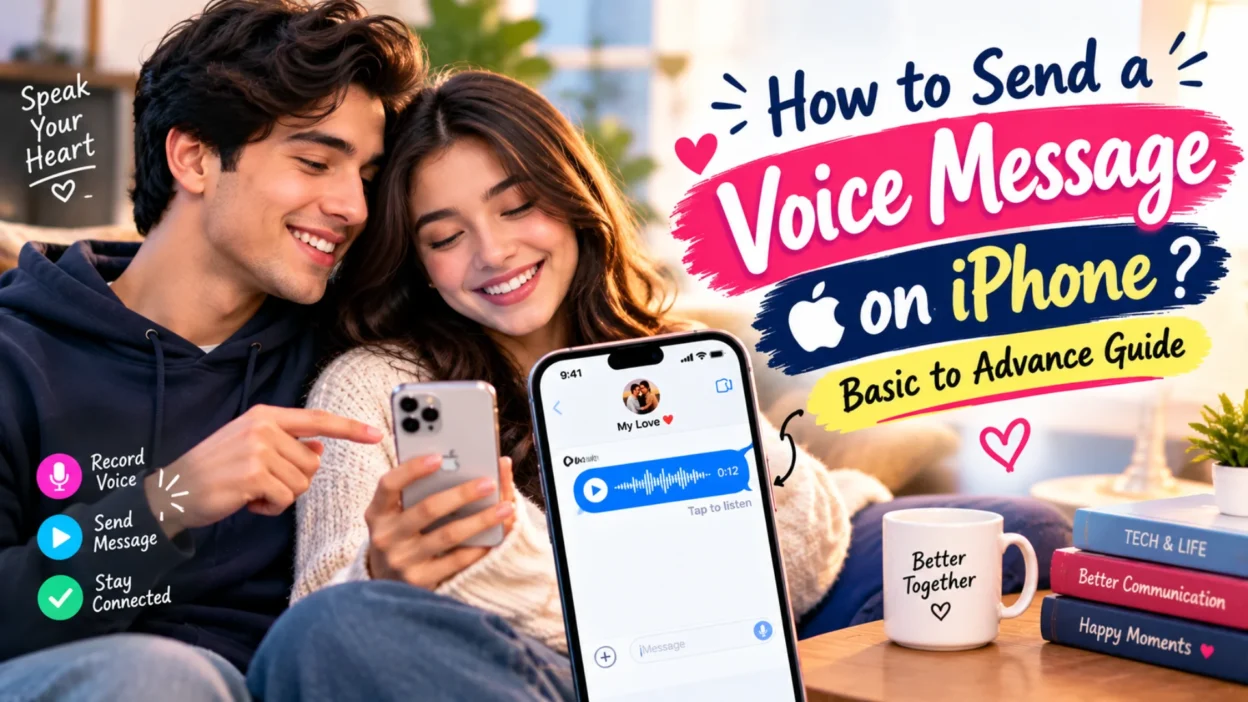
Sometimes typing just doesn’t work. You want to explain something complicated, share excitement in your voice, or send a quick update while your hands are busy. Voice messages solve all of that. They let you communicate tone, emotion, and detail in a way text can’t match.
Your iPhone has a built-in voice messaging feature, and several popular apps offer their own versions. This guide walks you through exactly how to send a voice message on iPhone using iMessage, WhatsApp, Telegram, and the Voice Memos app.
How to Send a Voice Message in iMessage
iMessage is the default messaging app on iPhone, and it includes a built-in voice message feature. You can send voice messages to anyone using iMessage, which means both you and the recipient need Apple devices.
Method 1: Hold to Record
This is the fastest way to send a voice note in iMessage.
Step 1: Open the Messages app and tap on a conversation, or start a new one.
Step 2: Look for the waveform icon at the bottom right of the screen, near the text field.
Step 3: Press and hold the waveform button. Recording starts immediately.
Step 4: Speak your message clearly into the microphone.
Step 5: Release the button when you’re done.
Step 6: Tap the Play button to preview your recording. If you’re happy with it, tap the up arrow to send. If not, tap the X icon to delete it and start over.
Method 2: Using the Plus Button
Apple moved the voice recording option in iOS 17, so if you’re on a newer iPhone, you’ll find it through the plus button.
Step 1: Open the Messages app and tap on a conversation.
Step 2: Tap the plus icon on the left side of the text field.
Step 3: Select Audio from the menu that appears.
Step 4: Tap the record button and start speaking. Tap the stop icon when you’re finished.
Step 5: Tap the play button to review your recording. If you like it, tap the up arrow to send. If not, tap the X to delete and try again.
Important Details About iMessage Voice Messages
Voice messages in iMessage are end-to-end encrypted, meaning only you and the recipient can access them.
By default, voice messages disappear two minutes after you send or listen to them. This is designed to save storage space on your iPhone. Both you and the recipient have that two-minute window to tap “Keep” if you want to save the message permanently.
If you’d rather keep every voice message automatically, you can change this setting. Go to Settings, then Apps, then Messages. Under Audio Messages, tap Expire and select Never. After that, voice messages stay in your conversation until you delete them manually.
How to Send a Voice Message in WhatsApp
WhatsApp is one of the most popular alternatives for voice messaging, especially because it works across both iPhone and Android. If you’re texting someone who doesn’t have an iPhone, WhatsApp is often the best option.
Step-by-Step Instructions
Step 1: Open WhatsApp and tap on a conversation.
Step 2: Find the microphone icon in the bottom right corner of the screen.
Step 3: Tap and hold the microphone icon to start recording. Speak your message.
Step 4: Release the button to stop recording.
Step 5: Tap the send button, which looks like a paper airplane, to share the recording.
You can also swipe left to cancel a recording or swipe up to lock it for hands-free recording. Locking is useful if you need to reference something while speaking.
WhatsApp Voice Message Features
Unlike iMessage, WhatsApp voice messages don’t expire automatically. They stay in the conversation until either person deletes them.
WhatsApp also lets you preview a message before sending. After you release the microphone button, the message sits in the text field with a play button. You can listen to it before tapping send.
You cannot unsend a voice message after the recipient has listened to it. WhatsApp allows you to delete messages for everyone, but this only works within a limited window and if the recipient hasn’t already played it.
How to Send a Voice Message in Telegram
Telegram offers one of the most flexible voice messaging systems, with unlimited deletion for private chats.
Step-by-Step Instructions
Step 1: Open Telegram and select a conversation.
Step 2: Tap the microphone icon in the bottom right corner.
Step 3: Hold to record or slide up to lock the recording for hands-free use.
Step 4: Release or tap the stop button when finished.
Step 5: Tap the send button to deliver the voice message.
Telegram Voice Message Features
Telegram lets you delete voice messages for everyone in private chats without a time limit. This is more generous than WhatsApp or iMessage.
Telegram also supports voice message transcription, so recipients can read your message if they can’t listen. This feature is available on both iOS and Android.
Using the Voice Memos App for Longer Recordings
Sometimes you want to record something longer than a quick message, or you want to share the audio through a different app. Voice Memos is Apple’s dedicated recording app, and it’s useful for this purpose.
Step-by-Step Instructions
Step 1: Open the Voice Memos app.
Step 2: Tap the record button at the bottom of the screen to start recording.
Step 3: Speak your message. Tap the stop button when you’re finished.
Step 4: Select the recording from your list, then tap the three-dot icon in the top right.
Step 5: Select Share.
Step 6: Choose how to send it. You can share via Messages, WhatsApp, email, or any other app that accepts audio files.
This method also lets you trim the recording before sending, which is useful if you want to cut out mistakes or silence at the beginning or end.
Tips for Clear Voice Messages
A few small habits make your voice messages easier to understand and more pleasant to receive.
Speak clearly and at a moderate pace. Rushing makes you harder to understand, especially if the recipient is listening in a noisy environment.
Find a quiet space. Background noise can overwhelm your voice. If you’re outside, try to find a sheltered spot or wait until you’re indoors.
Hold the phone correctly. Position the microphone close to your mouth, but not so close that your breath hits it. A few inches away usually works well.
Keep messages concise. Long voice messages can be tedious to listen to. If you have a lot to say, consider breaking it into shorter messages or sending a text instead.
Preview before sending when possible. In iMessage and WhatsApp, you can listen to your recording before sending. Use this to catch mistakes.
FAQs
Can I send a voice message to someone who doesn’t have an iPhone?
No, iMessage voice messages only work between Apple devices. If you’re texting an Android user, your message won’t deliver. Use WhatsApp, Telegram, or the Voice Memos app instead.
Why can’t I find the audio button in iMessage?
If you’re on iOS 17 or later, Apple moved the voice message option. Tap the plus button in the text field, then select Audio. Also make sure iMessage is enabled in Settings, Apps, Messages.
Do voice messages use data or SMS?
Voice messages in iMessage use your internet connection, either Wi-Fi or mobile data. They don’t count against your SMS balance.
Can I save voice messages I receive?
Yes. When you receive a voice message in iMessage, you have two minutes to tap “Keep” before it expires. You can also change the default setting to never expire by going to Settings, Apps, Messages, Expire, and selecting Never.
Can I send voice messages in group chats?
Yes. In iMessage and WhatsApp, you can send voice messages in group chats by following the same steps you’d use for a one-on-one conversation. Every member of the group receives the message.
How do I use the Raise to Listen feature?
Apple enables a feature called Raise to Listen by default. In a Messages conversation, raise the iPhone to your ear to listen to a voice message. To record a reply, raise the iPhone to your ear again, wait for the tone, and start speaking.
Can I delete a voice message after sending it?
In iMessage, you can unsend a voice message within two minutes, just like a text message. In WhatsApp, you can delete it for everyone if the recipient hasn’t listened yet. Telegram allows unlimited deletion for private chats.
Conclusion
Sending a voice message on your iPhone is simple once you know where the feature lives. iMessage offers built-in recording with a two-minute save window. WhatsApp and Telegram provide more flexibility with longer retention and cross-platform support. Voice Memos is there when you need to record something longer or share audio through other channels.
Each option has its strengths. iMessage is fastest for Apple-to-Apple conversations. WhatsApp works across platforms. Telegram offers the most control over deletion. Voice Memos handles longer recordings and gives you editing tools.
Whichever method you choose, the basic principle is the same. Speak clearly, keep it short, and preview before sending when the option exists. Voice messages add a personal touch that text can’t replicate, and once you get comfortable with the feature, you’ll probably use it more than you expect.

Hamid Mehmood is a passionate content creator dedicated to making words, messages, and online expressions easy to understand. He enjoys creating clear, helpful content that helps readers discover meanings and communicate with confidence.