You’ve probably been there before—it’s late at night and you remember you need to text someone, but you don’t want to disturb them. Or you keep forgetting to send an important message at just the right time. Fortunately, iPhone now offers built-in ways to schedule text messages so you never miss a moment.
This guide covers everything from Apple’s native scheduling feature to workarounds for older devices. You’ll learn exactly how to compose, schedule, and manage texts for the perfect delivery time.
How to Schedule a Text Using the Native “Send Later” Feature (iOS 18+)
If your iPhone runs iOS 18 or newer, you have Apple’s built-in text scheduling tool right in the Messages app. Here’s exactly how to set it up.
Step 1: Open the Messages app and either start a new conversation using the compose button or open an existing chat.
Step 2: Type your message as you normally would, but don’t tap the send arrow yet.
Step 3: Instead of hitting send, press and hold the blue send arrow (the up arrow icon). A small menu will appear with options.
Step 4: Select Send Later from the menu.
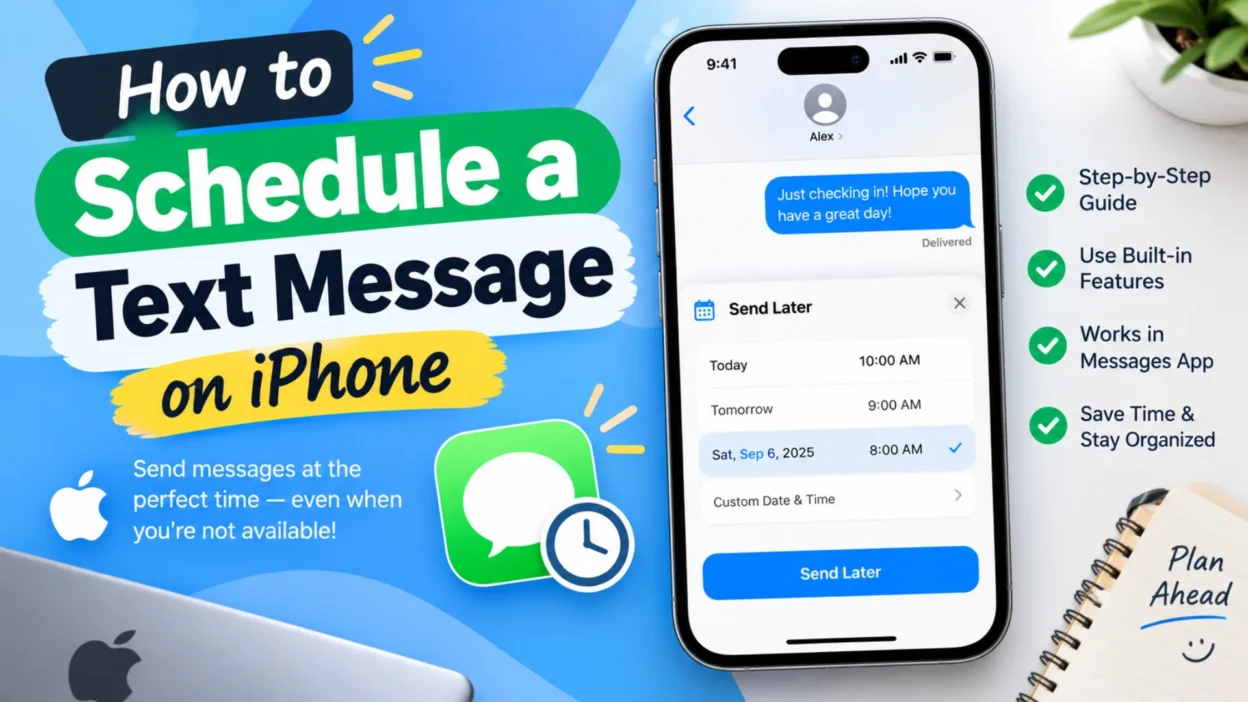
Step 5: A scheduling pop-up will appear where you can choose the exact date and time for your message to be delivered. You can schedule messages up to 14 days in advance.
Step 6: Tap Send to confirm your scheduled message.
The scheduled message will appear in your conversation with a dashed outline and a clock icon, making it easy to spot. Apple stores encrypted scheduled messages on their servers until delivery time, so they’ll still send even if your device is offline.
Quick Method to Access Send Later
If you use Send Later frequently, you can make it even easier to access. Tap the + icon in the Messages app, select More, and you’ll find Send Later there. You can even drag it to the first page of your message settings for faster access.
Important Things to Know About Send Later
It only works for iMessages: The Send Later feature only works with iMessage (blue bubble messages), not traditional SMS or MMS texts (green bubbles).
Your recipient won’t know: The person receiving your scheduled message won’t see any indication it was scheduled—it arrives like any normal text.
You need the latest iOS: iOS 18, iPadOS 18, macOS Sequoia, watchOS 11, or newer versions are required.
Delivery limits: You can schedule messages up to 14 days into the future, but not longer than that.
Editing and Managing Scheduled Messages
Sometimes you need to change a scheduled message—maybe you made a typo, or you need the timing to change. iOS 18 makes this easy.
To Reschedule: Open the conversation, scroll down to find your scheduled message, tap Edit beside the date above it, then choose Edit Time and select a new delivery time.
To Edit Text: Touch and hold the scheduled message bubble and select Edit. Make your changes and tap the send arrow to confirm.
To Delete: Touch and hold the scheduled message and select Delete to cancel it entirely before it sends.
To Send Immediately: Tap Edit above the scheduled message and choose Send Message to deliver it right away.
How to Schedule Texts Using Shortcuts (iOS 13–17)
If you’re using an older iPhone that can’t update to iOS 18, you can still schedule messages using the Shortcuts app. This method is also useful if you need recurring messages or want to send texts to Android devices.
Step 1: Open the Shortcuts app and go to the Automation tab.
Step 2: Tap Create Personal Automation or the + icon in the top corner.
Step 3: Select Time of Day and choose the date, time, and frequency (Daily, Weekly, Monthly, or one-time) you want your message sent.
Step 4: Tap Next and then select Add Action.
Step 5: Search for and select Send Message.
Step 6: Tap the Message field to type your text and select the recipient.
Step 7: Turn off Ask Before Running so the automation runs automatically without requiring your confirmation.
Step 8: Tap Done to save the automation.
Important: If you’re setting up a one-time message, remember to delete the automation after it runs to prevent it from sending again.
Using Third-Party Apps for Advanced Scheduling
If you need more features than Apple’s native options provide, several third-party apps offer enhanced scheduling capabilities.
Kyew is a popular option that allows auto-sending via Shortcuts integration, supports recurring daily, weekly, or monthly messages, and lets you send to multiple recipients individually like BCC in email. It works on iOS 13.6 or later and offers a free version with premium options available.
SMSClerk is another free app that sends you a notification at your scheduled time and prepares your message for you to hit send manually, but you still need to tap send when the notification arrives.
Scheduled supports SMS, iMessage, WhatsApp, Telegram, Email, and Line, though the free version requires manual confirmation while premium allows automatic sending.
DelayText offers a clean, lightweight interface for scheduling SMS and iMessage with a simple setup process.
How to Troubleshoot Failed Scheduled Messages
If your scheduled text didn’t send as expected, try these fixes:
Check for a failed message icon: Tap Try Again or Send as Text Message if available.
Verify your connection: For iMessage, make sure you have an internet connection (Wi-Fi or cellular data). For SMS, confirm you have cellular service.
Check the recipient’s status: Delivery may be delayed if their device is offline or unavailable.
FAQs
Can I schedule a text to send to an Android user?
The built-in Send Later feature only works with iMessage, so it won’t schedule texts to Android devices. However, you can use the Shortcuts automation method to schedule texts that will send as SMS to Android users.
Can I schedule group messages?
Yes, you can schedule texts to group chats using the native Send Later feature in iOS 18. Just open the group conversation, type your message, and follow the same scheduling steps.
Will the recipient know my message was scheduled?
No. Scheduled messages appear completely normal to recipients. Only the sender sees the dashed outline before delivery.
Do I need an internet connection for the text to send?
For iMessage, your iPhone needs to be connected to the internet at the scheduled time. For SMS, the message will send as long as you have a cellular signal, and it can also be delivered from Apple’s servers even if your device is offline.
Conclusion
Scheduling text messages on iPhone has become remarkably simple with iOS 18’s built-in Send Later feature. Whether you’re remembering a birthday, sending a work follow-up, or just respecting someone’s sleep schedule, you can now write messages on your own time and deliver them at just the right moment.
For users on older iOS versions, the Shortcuts automation method offers a reliable workaround. And if you need recurring messages, group texting, or multi-platform support, third-party apps like Kyew, Scheduled, and Delay Text provide advanced options.

Hamid Mehmood is a passionate content creator dedicated to making words, messages, and online expressions easy to understand. He enjoys creating clear, helpful content that helps readers discover meanings and communicate with confidence.