Sometimes, typing just doesn’t cut it. You want to convey your tone, share a quick update, or say something complex without typing a long message. Voice messages offer a personal touch that text sometimes lacks. They’re a quick and convenient alternative, especially when you’re on the go or in a noisy environment.
This guide walks you through everything you need to know about sending voice messages on your iPhone. We’ll cover the built-in Messages app, other popular platforms like WhatsApp, and some helpful tips for clear recordings.
Sending Voice Messages in iMessage
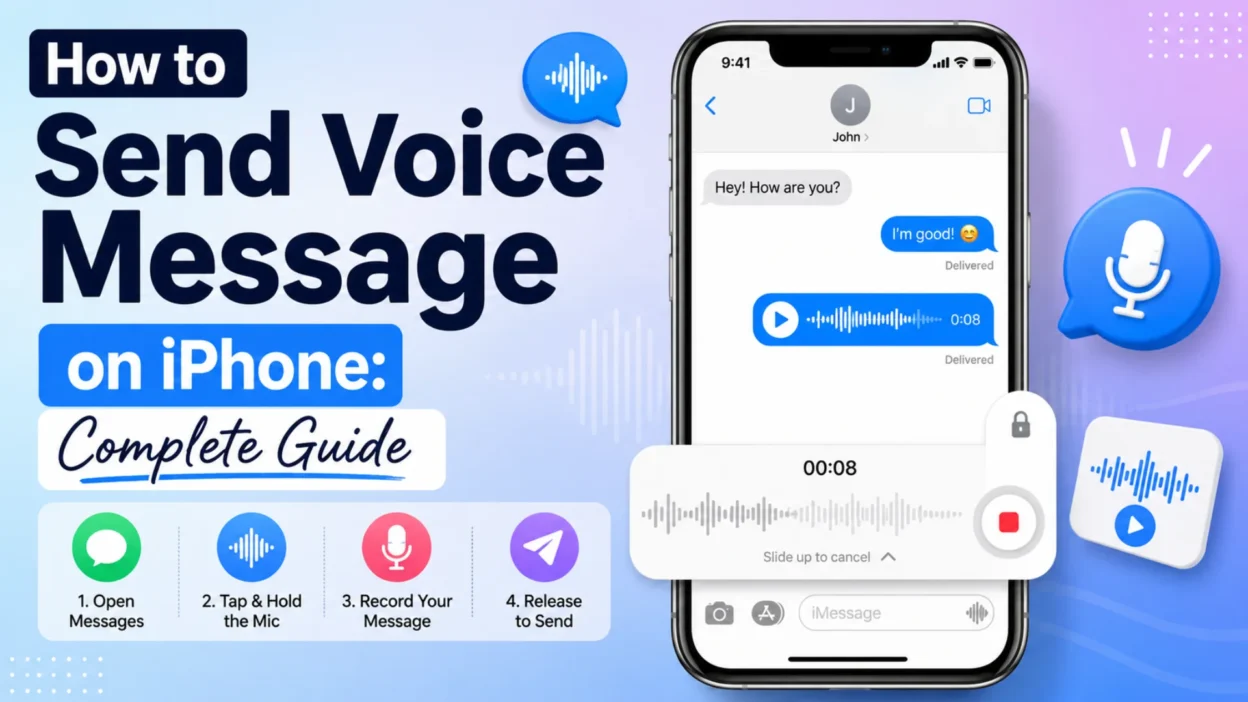
The Messages app on your iPhone has a built-in feature for sending audio messages directly to other Apple users. Here’s how to send a voice message on iPhone using iMessage.
Method 1: Hold to Record
This is the simplest and quickest method for sending a voice note in iMessage.
- Open the Messages app on your iPhone and select an existing conversation or start a new one.
- Find the waveform button at the bottom right of the screen.
- Long-press the waveform button. The recording will start immediately.
- Speak your message clearly into the microphone.
- Release the waveform button once you’re done.
- Tap the Play button to preview your recording before sending.
- Tap the Up arrow to send, or tap the X icon to delete the recording.
Method 2: Using the Plus Button
Apple moved the voice recording option around in iOS 17, so if you’re using a newer iPhone, you’ll find the feature through the plus button.
- Open the Messages app and tap on a conversation.
- Tap the “+” button at the bottom left.
- Select Audio from the menu that appears.
- Tap the record button and start speaking. Tap the Stop icon when finished.
- Tap the Play button to review your recording.
- Tap the Up arrow to send the message or the X icon to delete it and record again.
Important Things to Know About iMessage Voice Messages
All iMessage voice messages are end-to-end encrypted, meaning only the sender and recipient can access them.
By default, voice messages in iMessage are automatically deleted 2 minutes after you send or listen to them to save storage space on your iPhone.
Both you and the recipient have 2 minutes after playback to tap “Keep” to save the message.
If you want to permanently save all voice messages, you can change the default setting:
- Go to Settings > Apps > Messages.
- Under Audio Messages, tap Expire.
- Select Never.
How to send voice message on iphone in WhatsApp
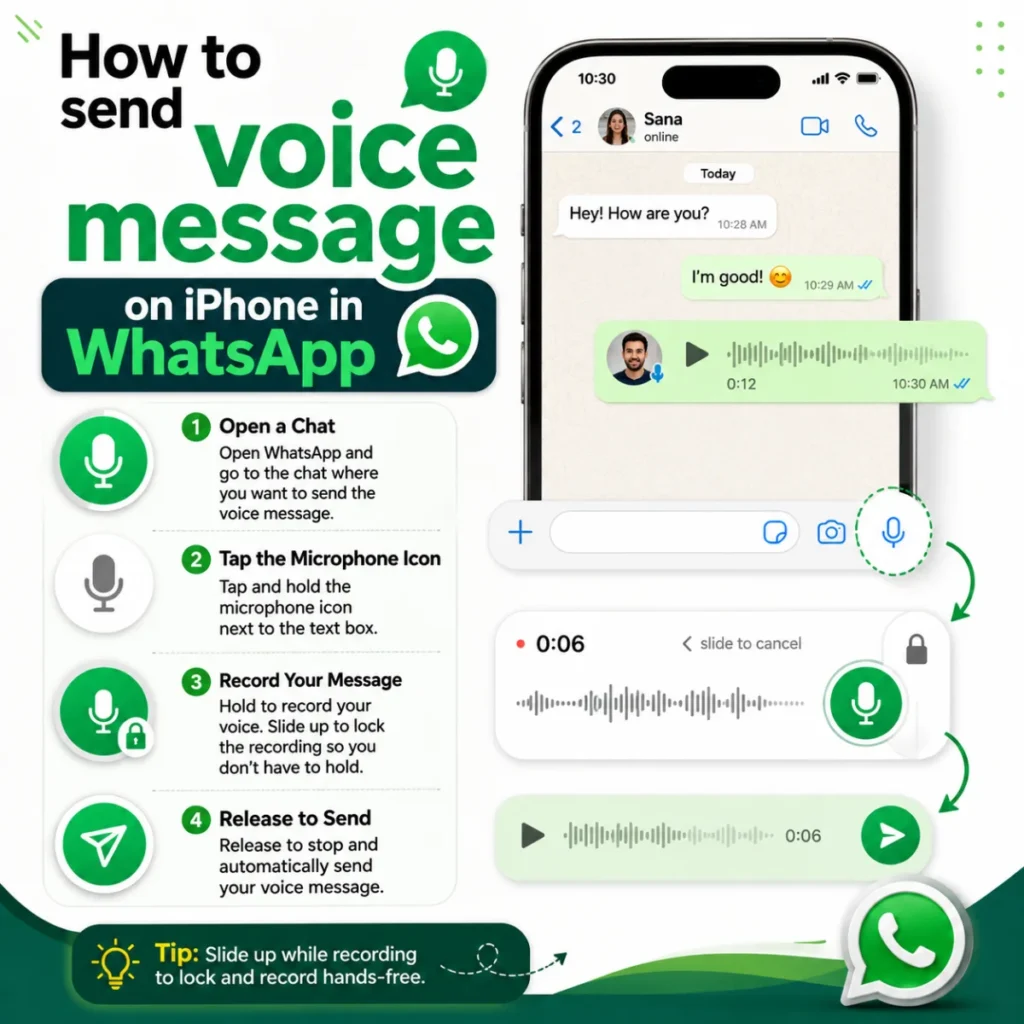
WhatsApp is one of the most popular ways to send voice messages from an iPhone, especially since it works across both iOS and Android devices without any additional requirements.
- Open WhatsApp on your iPhone and tap on a conversation.
- Find the microphone icon in the bottom right corner of the screen.
- Tap and hold the microphone icon to start recording. Speak your message.
- Release to stop recording.
- Tap the Send button (paper airplane icon) to share the recording.
- You can also swipe left to cancel the recording or swipe up to lock it for hands-free recording.
Key Differences Between Apps
While the basic principle is the same, different messaging apps handle voice messages slightly differently. Here are some key differences to keep in mind:
Preview Before Send:
- iMessage: Yes, you can listen before sending
- WhatsApp: No, you cannot preview
- Telegram: No, you cannot preview
- Signal: No, you cannot preview
Hands-Free Recording:
- iMessage: No, you must hold the button
- WhatsApp: Yes, slide to lock
- Telegram: Yes, slide to lock
- Signal: Yes, slide to lock
Auto-Delete:
- iMessage: Yes, after 2 minutes unless kept
- WhatsApp: No, messages stay permanently
- Telegram: No, messages stay permanently
- Signal: No, messages stay permanently
Using Voice Memos App for Longer Recordings
Another way to share a voice message on iPhone is by recording it through the Voice Memos app. You can capture your entire recording and then share it over any app from your iPhone.
- Open the Voice Memos app on your iPhone and tap the record button at the bottom to start recording.
- Once you’ve recorded your message, tap the Stop button to end the recording.
- Select the recording, then tap the 3-dots icon at the top right.
- Select Share.
- Choose how to send it, via Messages, WhatsApp, email, or any other app.
This method also gives you the benefit of trimming the message before sending it.
Tips for Clear Voice Messages
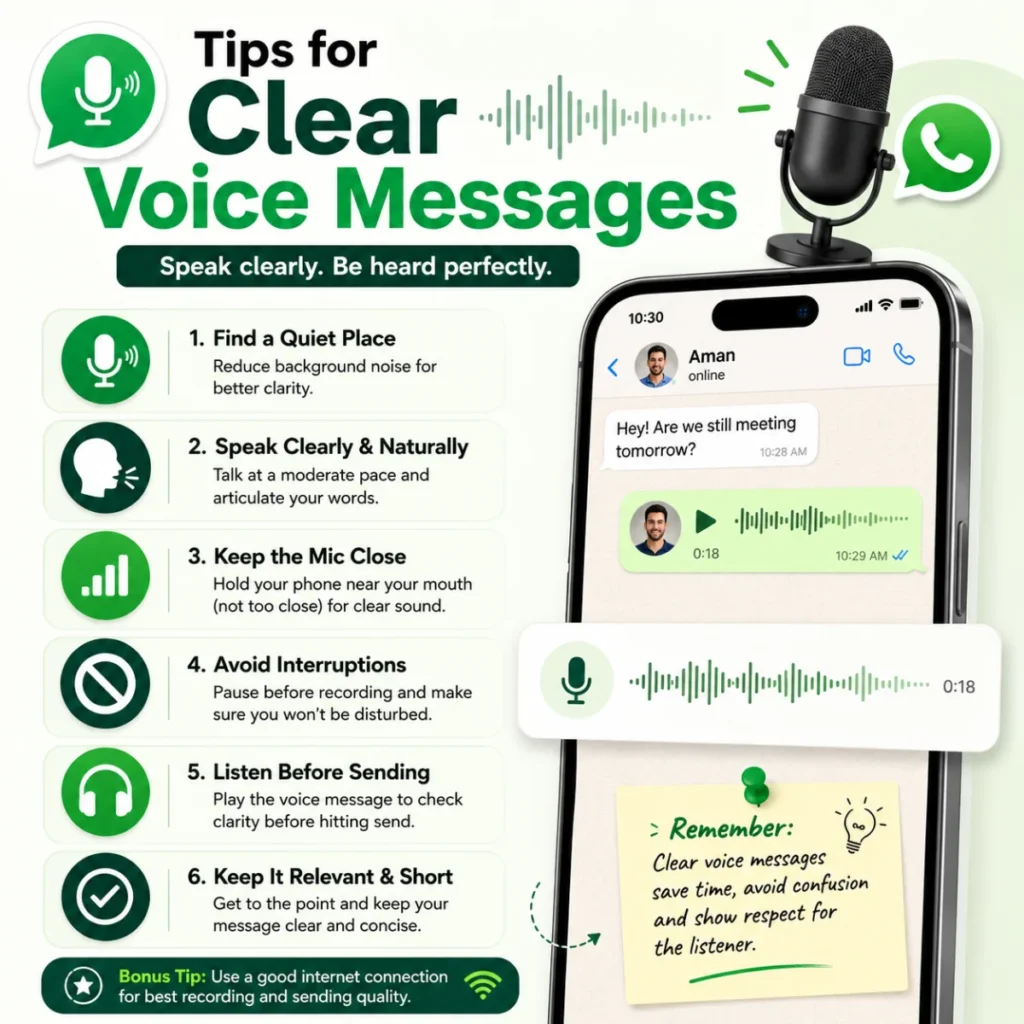
Here are some tips to ensure your voice messages sound professional and are easy to understand:
Speak Clearly: Enunciate your words and speak at a moderate pace.
Reduce Background Noise: Find a quiet environment to minimize distractions.
Hold the Phone Correctly: Position the microphone close to your mouth but not directly in front of it.
Test Your Audio: If possible, record a short test message to check the audio quality before sending important messages.
Keep Messages Concise: Aim for shorter messages to maintain the listener’s attention.
FAQs
Can I send a voice message to someone who doesn’t have an iPhone?
No, voice messages in iMessage only work between Apple devices using iMessage. If you send one to an Android user, it will not deliver. However, you can use WhatsApp or the Voice Memos app to send voice messages to Android users.
Why can’t I find the audio button in iMessage?
If you are using iOS 17 or newer, Apple moved the voice message option. Tap the “+” button in the text field, then select Audio. Also, ensure iMessage is enabled in Settings > Messages.
Do voice messages use data or SMS?
Voice messages in iMessage use your internet connection (Wi-Fi or mobile data), not your SMS balance.
Can I save voice messages I receive?
Yes. When you receive a voice message, you have 2 minutes to tap “Keep” before it expires. You can also change the default setting so they never expire (Settings > Messages > Expire > Never).
How do I use the “Raise to Listen” feature?
Apple enables a feature called “Raise to Listen” automatically by default on every iPhone. In a Messages thread, raise the iPhone to your ear to listen to a voice message. To record a response, raise the iPhone to your ear again, wait for the tone, and start speaking.
Can I send voice messages in group chats?
Yes, you can send voice messages in group chats on iPhone using iMessage. Simply follow the same steps as sending a voice message in a one-on-one conversation, but select the group chat instead. Each member of the group will receive the voice message.
Conclusion
Sending a voice message on your iPhone is a simple and effective way to communicate. Whether you’re using iMessage, WhatsApp, or another app, the process is intuitive and quick. It’s a great alternative to typing, especially when you want to add a personal touch or share something quickly.
Remember to speak clearly and keep your messages concise for the best listening experience. With this guide, you’re all set to start sending voice messages and making your conversations more personal and expressive. If you want to save voice messages permanently, remember to adjust your settings in Settings > Messages > Expire > Never.

Hamid Mehmood is a passionate content creator dedicated to making words, messages, and online expressions easy to understand. He enjoys creating clear, helpful content that helps readers discover meanings and communicate with confidence.