You’ve sent a message and immediately regretted it. Maybe there’s a typo, maybe it went to the wrong person, or maybe you just wish you hadn’t hit send. The good news is that iPhones have a built-in unsend feature—but it comes with strict time limits and conditions.
This guide walks you through exactly how to unsend a message on your iPhone, what to do if the option isn’t available, and the limitations you need to know.
How to Unsend a Message on iPhone (iMessage)
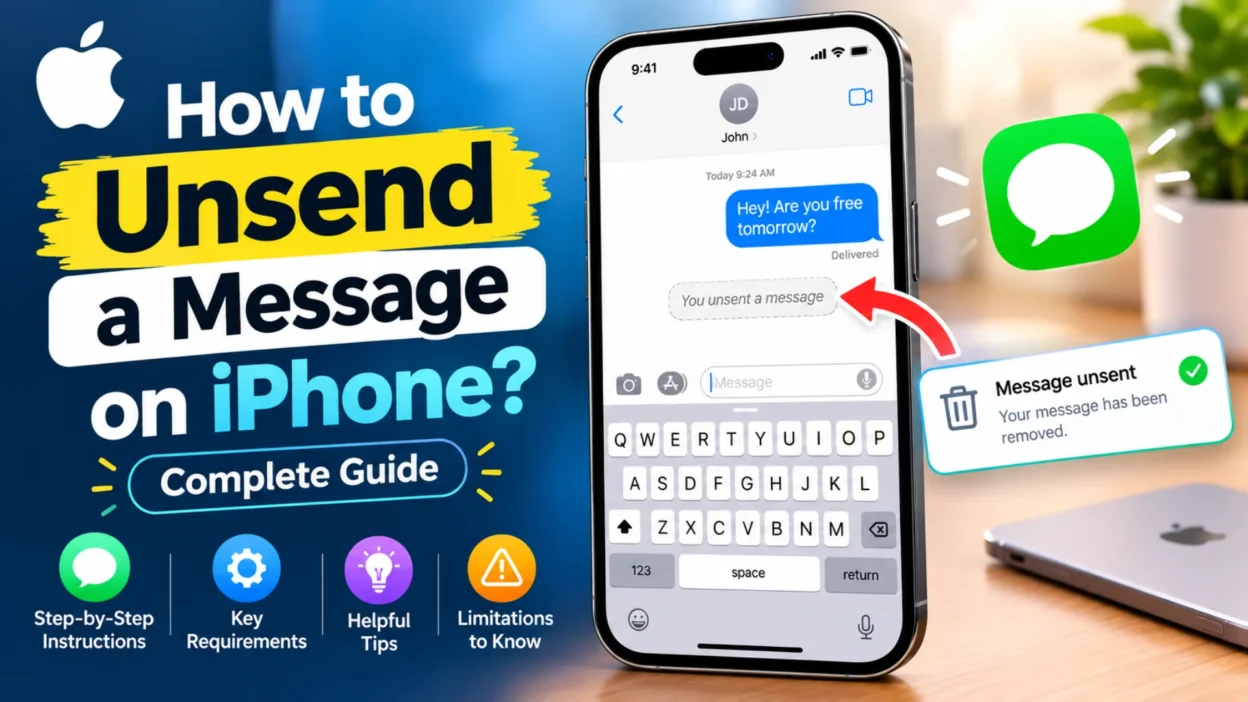
The unsend feature works for iMessages (blue bubbles), not traditional SMS texts (green bubbles). You can only undo a message within 2 minutes of sending it.
Step-by-Step Instructions
Step 1: Open the Messages app on your iPhone.
Step 2: Navigate to the conversation containing the message you want to unsend.
Step 3: Touch and hold the message bubble. A menu will pop up.
Step 4: Tap Undo Send from the menu.
Step 5: The message disappears, and a note appears in both your conversation and the recipient’s saying “You unsent a message.”
What Happens on the Recipient’s End
If the recipient uses iOS 16 or later, the message disappears from their device. They’ll see a note that you unsent a message, but the original content is gone.
However, if they’re using an older iOS version, the original message stays on their device. You’ll get a notification warning that they might still see it. This is an important limitation to understand—unsending doesn’t guarantee the message is gone forever if the other person hasn’t updated their software.
A Quick Note on Group Chats
The unsend feature works in group chats, but with the same 2-minute limit. If anyone in the group has an older iOS version or isn’t using iMessage, the unsend may not work for everyone. In a mixed group with Android users, those members may still see the original message.
Why “Undo Send” Might Not Appear
If you don’t see the Undo Send option when you long-press a message, here are the most common reasons.
You’re past the 2-minute window. The unsend feature only works within 2 minutes. After that, the option disappears entirely.
You’re texting an Android user. You cannot unsend messages sent to Android phones. Both parties need iMessage for this feature to work. If you’re in a green-bubble conversation, unsend isn’t available.
Your iOS is outdated. You need iOS 16 or later to unsend messages. Check your version in Settings > General > Software Update.
You’re sending SMS (green bubbles). Traditional text messages cannot be unsent. The feature only works with iMessage, which requires both sender and recipient to use Apple devices.
iMessage is turned off. If iMessage is disabled in your settings, your messages send as SMS and cannot be unsent.
What to Do If You Missed the 2-Minute Window
If more than 2 minutes have passed but less than 15 minutes, you can still edit the message up to five times. Touch and hold the message and tap Edit. The recipient will see that you edited it, and they can view previous versions if they have a compatible device.
After 15 minutes, neither unsend nor edit is available. The message is permanent on both devices.
How Editing Works
Editing lets you fix typos or change wording without deleting the entire message. The recipient sees the edited version, but they can tap to view the original if they want. This transparency is intentional—Apple designed it so recipients know when a message has been changed.
The Difference Between Unsend and Edit
These two features serve different purposes and have different time windows.
Unsend removes the message entirely. It works within 2 minutes and leaves a “You unsent a message” note. The original content is gone for recipients on iOS 16 or later.
Edit changes the message text. It works within 15 minutes and up to five times. The recipient sees the edited version and can view previous versions. This is useful for fixing mistakes without deleting the whole message.
Neither feature works for SMS messages or conversations with Android users.
What to Do If You Can’t Unsend
If unsending isn’t an option—because you’re past the window, texting an Android user, or using SMS—you still have ways to handle the situation.
Send a Follow-Up Message
A quick acknowledgment can clear up confusion. Something simple like “Sorry, that message wasn’t meant for you” or “Ignore that—autocorrect got me” works well. Most people appreciate the honesty.
Edit If You’re Within 15 Minutes
If you’re within the editing window, you can fix typos or clarify your message without deleting it. Just long-press and tap Edit.
Apologize Directly
If the message was inappropriate or hurtful, a direct apology is better than trying to hide it. People respect honesty more than silence.
Learn From It
The best way to avoid needing the unsend feature is to double-check before hitting send. Read your message once more, confirm the recipient, and then send.
FAQs About How to Unsend a Message On iphone
Can I unsend a message after 2 minutes?
No. The unsend feature only works within 2 minutes of sending. After that, the message is permanent. If you’re within 15 minutes, you can edit it instead.
Can I unsend a message to an Android phone?
No. The unsend feature only works with iMessage. If you’re texting an Android user, your messages are SMS and cannot be unsent.
Will the recipient know I unsent a message?
Yes. They’ll see a note saying “You unsent a message.” If they’re on an older iOS version, they might also still see the original message.
Can I unsend a message in a group chat?
It depends. The unsend feature works in group chats, but if anyone in the group has an older iOS version or isn’t using iMessage, the unsend may not work for everyone.
What’s the difference between unsend and edit?
Unsend removes the message entirely within 2 minutes. Edit lets you change the message text within 15 minutes, up to five times.
Does unsend work if the recipient has already read the message?
Yes. The unsend feature works even if the recipient has already read your message. As long as you’re within the 2-minute window, you can still unsend. The message will disappear from their device.
Can I unsend multiple messages at once?
No. You can only unsend one message at a time. You’ll need to long-press each message individually and select Undo Send for each one.
Why does my iPhone say “You unsent a message”?
This note appears when someone unsends a message. It lets you know that a message was removed. If you’re the one who unsent it, you’ll see this note in your conversation as well.
Conclusion
The unsend feature on iPhone is a lifesaver for accidental messages, but it has clear limits. You need to act within 2 minutes, and both you and the recipient must be using iMessage with iOS 16 or later. If you miss that window, editing is your backup option for up to 15 minutes.
For anything sent to Android users or via SMS, there’s no way to unsend. In those cases, a quick follow-up message acknowledging the mistake is often the best approach. Honesty and a brief apology go a long way.
The best strategy is prevention—double-check your messages before sending, especially if you’re upset, distracted, or typing quickly. But when mistakes happen, knowing how to unsend gives you a safety net. Use it wisely, and remember that it’s not a guarantee. The safest approach is to always think before you hit send.

Hamid Mehmood is a passionate content creator dedicated to making words, messages, and online expressions easy to understand. He enjoys creating clear, helpful content that helps readers discover meanings and communicate with confidence.