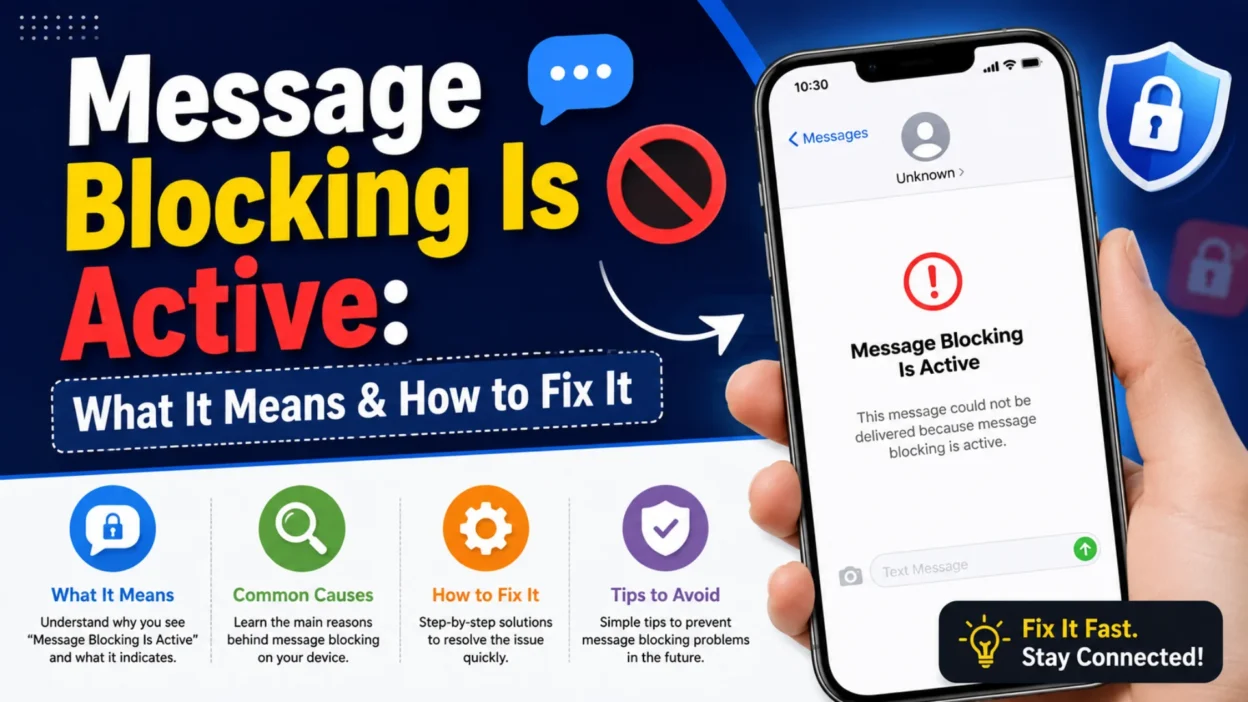
You try to send a text message, and instead of the usual “Delivered” notification, you receive an automated reply: “Free Msg: Unable to send message – Message Blocking is active.” It’s frustrating, especially when there’s no clear explanation of what went wrong or how to fix it. This error can appear on both Android and iPhone devices, and it typically stops you from sending SMS messages entirely until the underlying issue is resolved.
This guide will explain exactly what “Message Blocking Is Active” means, why it happens, and provide step-by-step solutions to get your messaging back up and running. We’ll cover everything from quick phone fixes to carrier-related issues, so you can identify the cause and resolve it quickly.
What Does “Message Blocking Is Active” Mean?
When you receive the “Message Blocking Is Active” error, it generally means your text message was stopped before it could be delivered. The decision to block the message typically happens at the carrier or account level, rather than on your phone itself . It’s important to note that this error does not necessarily mean the person you’re texting has blocked your number. In fact, if someone blocks you, you usually won’t receive any notification at all—your messages will simply appear to send but never show as “Delivered” .
Instead, the “Message Blocking Is Active” response is usually an automated message from your cellular provider indicating a problem on your end . It signals that your carrier has temporarily disabled SMS functionality on your account or that a specific type of message is being restricted . This can happen on both Android and iPhone devices .
Why Does My Phone Say Message Blocking Is Active?
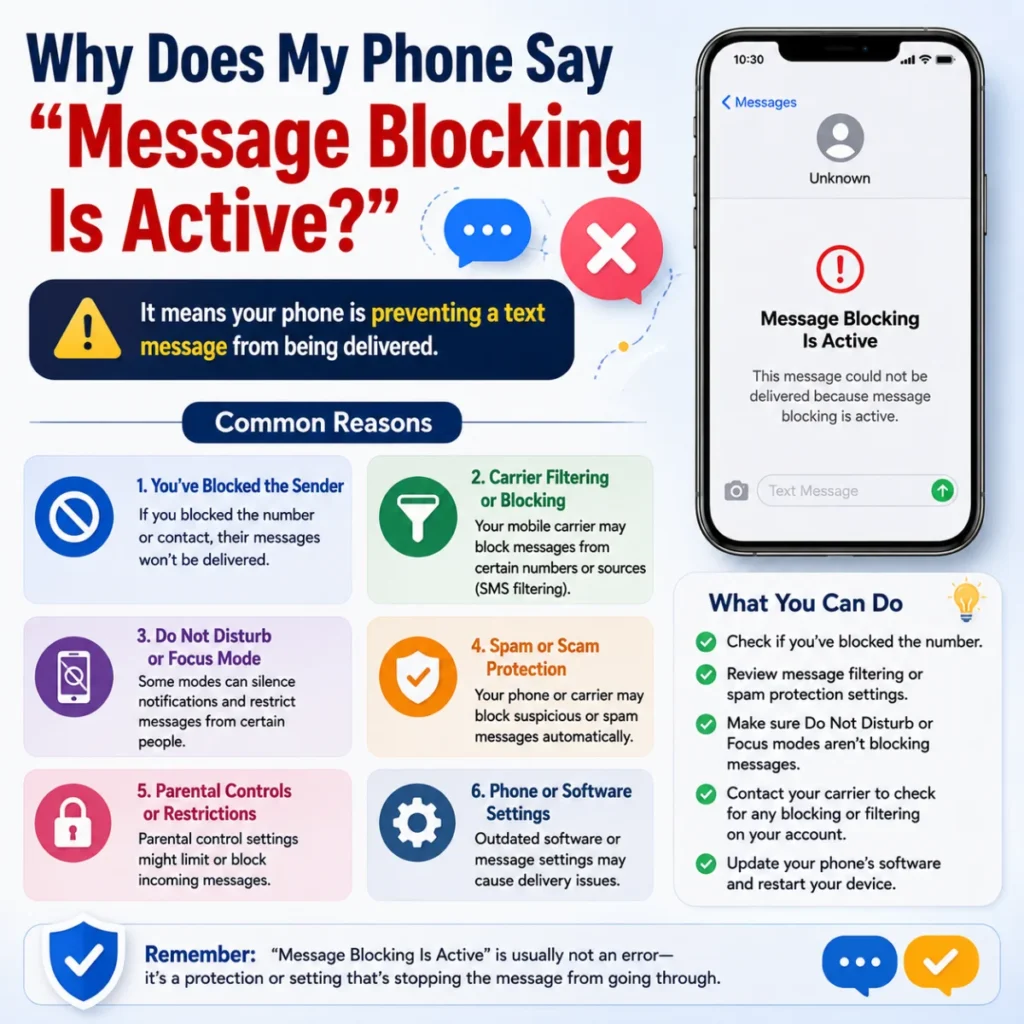
Several factors can trigger this error. Here are the most common reasons why message blocking becomes active:
Account or Billing Issues
One of the most frequent causes is an issue with your mobile account. If you have an overdue bill, your carrier may restrict services like SMS to encourage payment . Similarly, if your prepaid plan has expired or your balance is insufficient, you might see this error . In some cases, the line may not be fully activated after a recent SIM swap or plan change . Bark phones, for example, often show this error when there is a billing issue with the child’s phone or the person they are texting .
Carrier-Level Message Controls
Many carriers allow users to block certain types of messages through their account settings. This includes blocking all incoming and outgoing SMS/MMS messages, restricting messages to short codes (5-6 digit numbers used for services like banking alerts or verification systems), or turning off premium messaging . If any of these features are enabled on your account, you may see the “Message Blocking Is Active” error . T-Mobile, for instance, has been known to issue this error due to short-code configuration issues .
Device-Level Blocking
Sometimes the problem lies within your phone’s settings rather than your carrier. You may have accidentally added the recipient’s number to your block list . On Android, an incorrect default SMS app or corrupted app data can cause messaging failures . On iPhone, conflicts between iMessage and SMS, or having iMessage enabled for a number that is no longer active, can sometimes produce this error .
Network or SIM Card Problems
Temporary network glitches, weak signal, or issues with your SIM card can also trigger the error . If your phone cannot connect properly to your carrier’s network, it may fail to send SMS messages. An incorrectly entered SMS center number (the number that routes your text messages) is another possible culprit . On dual-SIM phones, the wrong line may be set for SMS, leading to the error .
Sending to a Blocked or Incorrect Number
While the error is usually on your side, it can sometimes be because the number you’re trying to text is blocked by your carrier, either intentionally or due to spam filters. Alternatively, you might have saved the number with an incorrect country code if you’re sending an international text .
How to Fix “Message Blocking Is Active”
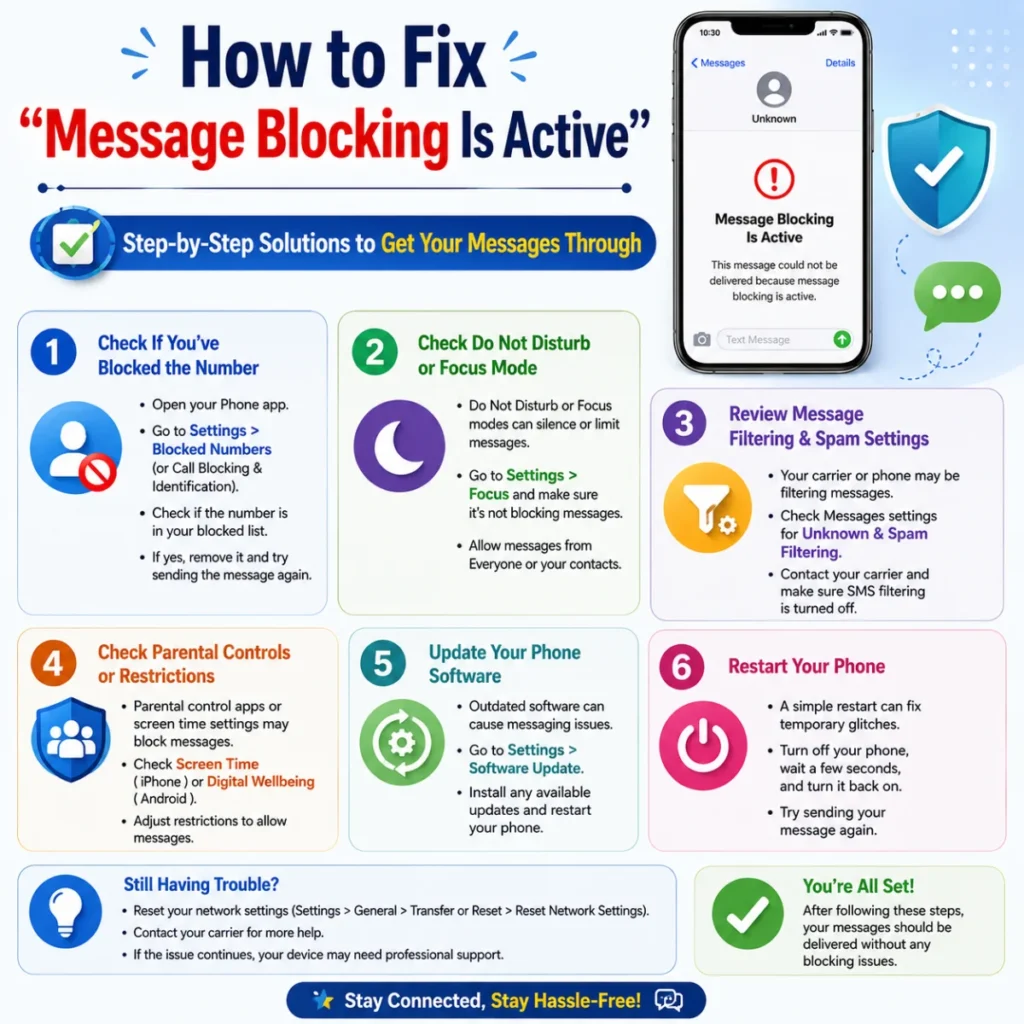
Since the error can stem from different sources, it’s best to follow a systematic troubleshooting approach. Start with the simplest checks and move on to more involved fixes if needed.
1. Check Your Carrier and Account Status First
Before touching any phone settings, verify that messaging is allowed on your line . Contact your mobile carrier’s customer support and ask them to check for any message blocks, billing issues, or account restrictions . Many cases of “Message Blocking Is Active” trace back to account or plan restrictions rather than phone problems . If you’re on a prepaid plan, ensure you have enough balance to send SMS messages . If the issue is with your carrier, a support representative can remove the block on their end . This step is especially important for issues with short-code messaging, as these permissions are often managed directly by the carrier .
2. Check Your Phone’s Block List
One of the most common reasons for this error is accidentally blocking a contact . Review your phone’s block list and unblock any numbers you want to text. The process varies by device:
- On Android: Open your phone’s settings, navigate to the “Blocked numbers” or “Block list” section, and remove the contact .
- On iPhone: Go to Settings > Phone > Blocked Contacts, and unblock the number .
3. Try Basic Phone Fixes
Often, the issue can be resolved with a simple restart or network refresh.
- Restart Your Phone: A quick restart can clear temporary software glitches that might be interfering with messaging .
- Toggle Airplane Mode: Turn on Airplane Mode, wait 10-15 seconds, and turn it off. This forces your phone to reconnect to the nearest cell tower, which can resolve network connectivity issues .
- Check Your Signal: Ensure you have a stable network connection. If you’re in an area with weak signal, try moving to a different location .
4. Check Your Messaging App Settings
If the problem is isolated to a specific app, you may need to troubleshoot its settings.
- Verify the Default SMS App (Android): Make sure your messaging app is set as the default SMS app .
- Clear the Messaging App’s Cache and Data (Android): Go to your phone’s settings, find your messaging app under “Apps” or “Applications,” tap on “Storage,” and select “Clear cache” . Note: Clearing data will delete your messages, so back them up if necessary.
- Toggle iMessage and RCS (iPhone & Android): On iPhone, go to Settings > Messages and turn off iMessage, then turn it back on. Make sure “Send as SMS” is enabled . On Android, open Google Messages, go to Settings > RCS Chats, and turn RCS off to test if the issue is with advanced messaging features .
- Enable Premium SMS Access (Android): Some apps and services send messages through short codes or premium SMS. If this is disabled, you may get the error. Go to Settings > Apps > tap the three-dot menu > Special Access > Premium SMS Access, and set your messaging app to “Ask” or “Always Allow” .
5. Verify Your SIM Card and Network Settings
Issues with your SIM card or network configuration can also cause this error.
- Check Your SIM Card: Ensure your SIM card is active and inserted correctly . If you’re using a dual-SIM phone, make sure the correct line is selected for messaging . For Bark phones, the SIM card typically needs to be in the SIM1 slot .
- Check Your SMS Center Number: An incorrect SMS center number can prevent messages from sending. You can usually find this setting in your phone’s dialer by entering a code like ##4636#*#*. Tap “Refresh” to retrieve the correct number from your carrier . If you’re unsure, contact your carrier for assistance.
6. Update Software and Try a Different App
Outdated software can sometimes cause compatibility issues .
- Update Your Phone’s Software: Go to your phone’s settings and check for system updates .
- Update Your Messaging App: Ensure your messaging app is up to date through the Google Play Store or Apple App Store .
- Try a Different Messaging App: Download a different SMS app and set it as your default. If you can send messages, the issue is likely with your original app .
7. Reset Network Settings (Last Resort)
Resetting your network settings can resolve connectivity issues but will also clear saved Wi-Fi passwords and Bluetooth connections . You can find this option in your phone’s settings under “General Management” or “System,” then “Reset” or “Reset network settings” .
8. Factory Reset (Absolute Last Resort)
If nothing else works, a factory reset can resolve persistent software issues. This should be your last resort, as it erases all data on your phone. Make sure to back up your data before proceeding .
FAQs Section
Can “Message Blocking Is Active” mean I’ve been blocked by someone?
Generally, no. When someone blocks your number, your phone typically does not show this error . Instead, your messages may be sent but never show “Delivered,” or you may notice that replies stop entirely . However, some carriers like T-Mobile may show this message when texting a number that has blocked you . The issue is almost always on your side or with your carrier if you consistently see the blocking notice .
How do I turn off message blocking on my iPhone?
The “Message Blocking Is Active” error is usually controlled by your cellular provider, not your iPhone . Start by checking if you’ve blocked the person you’re texting (Settings > Phone > Blocked Contacts). If that’s not the case, contact your cellular provider, as they will need to remove the block from your account .
Is “Message Blocking Is Active” a carrier issue or a phone issue?
It can be either. In many cases, the error originates from a carrier-side block due to billing issues, plan restrictions, or disabled SMS features . However, device-level conflicts, such as a blocked contact or an incorrect default SMS app, can also produce the error . The best approach is to check for phone issues first and then contact your carrier if the problem persists .
Why does my phone say “Message Blocking Is Active” when I send texts?
The message indicates that a text was stopped before delivery . The decision to block it often happens at the carrier level, not on your phone . The most common causes are account restrictions, carrier message controls, or blocking a contact by accident .
Does green text mean I am blocked?
No. On iPhone, green text bubbles simply mean your message was sent as an SMS (Short Message Service) instead of an iMessage . This usually indicates that iMessage is not available for some reason—perhaps the recipient doesn’t have an Apple device or iMessage is turned off. It does not indicate that you’ve been blocked .
Conclusion
Encountering the “Message Blocking Is Active” error can be a major inconvenience, but in most cases, it’s fixable. By systematically working through the troubleshooting steps outlined in this guide, you can identify and resolve the root cause and restore seamless communication.
Start with the quick checks—restart your phone, check your signal, and review your block list. If those don’t work, move on to account and carrier-related fixes. Remember, if the issue stems from your cellular provider, they are the only ones who can remove the block, so don’t hesitate to reach out to their customer support team

Hamid Mehmood is a passionate content creator dedicated to making words, messages, and online expressions easy to understand. He enjoys creating clear, helpful content that helps readers discover meanings and communicate with confidence.