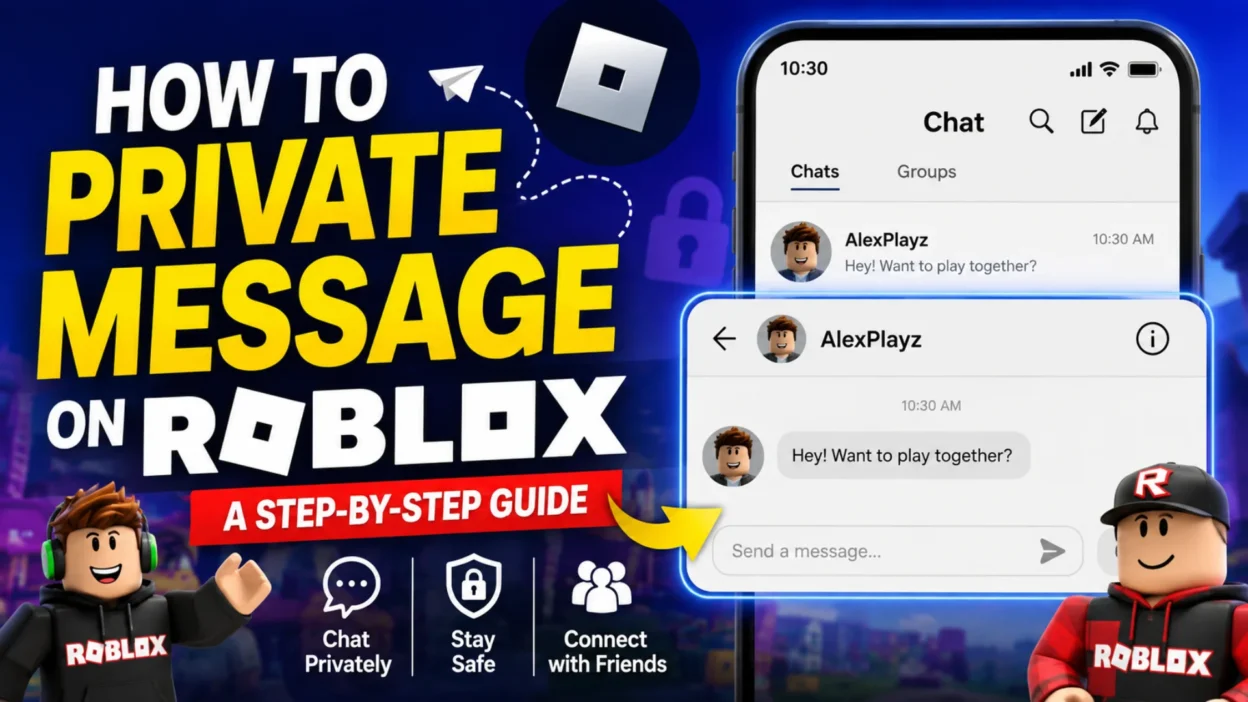
You’re in the middle of an exciting game on Roblox, and you need to coordinate a strategy with a friend—but you don’t want the entire server to see your plan. Or perhaps you’ve found a rare item and want to share the location discreetly. Fortunately, Roblox offers simple ways to send private messages to other players, allowing you to communicate one-on-one without broadcasting your conversation to everyone else.
This guide covers everything you need to know about sending private messages on Roblox. We’ll walk through the two main methods—in-game whispers and profile messages—explain the platform differences, and help you troubleshoot common issues so you can chat like a pro.
Understanding Private Messaging on Roblox
Before diving into the steps, it helps to understand what private messaging actually means on Roblox. There are two distinct ways to communicate privately:
- In-Game Private Chat (Whispering): This allows you to send a message that only a specific player can see while you’re both in the same game. This is ideal for strategy discussions, trades, or private conversations during gameplay. The conversation ends when you leave the game.
- Profile Messaging: This is a direct message sent to another player’s profile, similar to an inbox message on social media. You can send and receive these messages even when you’re not in the same game. This is better for longer conversations or when you’re not actively playing together.
Both methods require that your privacy settings allow messages from the sender. You’ll need to be friends with the recipient to send messages from their profile, while in-game whispering usually works with anyone on the same server but may require certain age and privacy settings.
How to Private Message in a Roblox Game
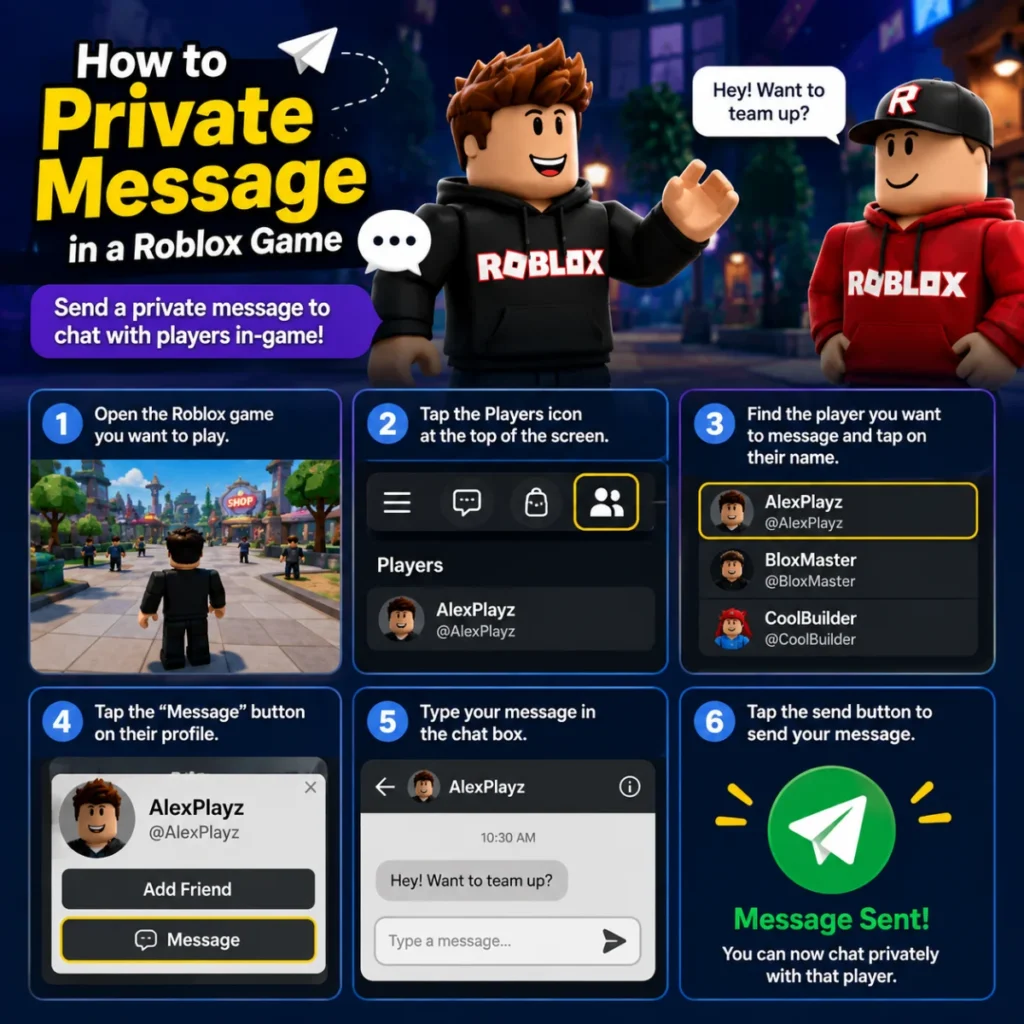
The fastest way to send a private message during gameplay is by using a special command. This is known as “whispering” and is perfect for when you need to communicate discreetly.
Using the /w Command
The /w command tells the Roblox chat system that you want to send a private message to a specific person. Here’s how to use it:
- Open the Chat Window: While in a game, press the / key on your keyboard (or tap the chat icon on mobile) to open the chat box.
- Type the Command: In the chat box, type /w followed by the player’s exact username, and then your message. Make sure there is a space between the /w, the username, and your message.
- Example: /w gamer123 Hey, I found the hidden treasure on the left side of the map!
- Send the Message: Press the Enter key (or the Send button on mobile). Your message will now be visible only to the player you specified.
Alternative: Clicking a Username
Some guides also mention an alternative method where you can click on a player’s username in the public chat and then type your message. This automatically formats the /w command for you. However, the manual /w method is the most reliable and works across all devices.
Important Note About Privacy Settings
Keep in mind that for you to whisper to someone, your account settings need to allow for chatting. Also, depending on their privacy settings, other players may or may not be able to whisper to you. By default, players under 13 have stricter privacy settings, often limiting chat abilities.
How to Send a Private Message from a Profile
If you’re not in the same game, or you just want to send a longer message, you can do so directly from a player’s profile.
On PC or Mac
- Find Your Friend: On the Roblox website, navigate to your Friends list on the left-hand sidebar. You can also use the search bar at the top of the screen to find a specific user.
- Open Their Profile: Click on the username or profile picture of the friend you want to message to go to their profile page.
- Click the Message Button: On their profile banner, you’ll see a Message button (often represented by a speech bubble icon). Click it.
- Type and Send: A chat box will open where you can type your message. Press Enter to send it.
On Mobile Devices (iOS & Android)
- Open the App: Launch the Roblox app and log in.
- Go to Chats: At the bottom of the screen, tap the Chat icon (speech bubble).
- Start a New Chat: Tap the “+” or New Message button to see your friends list.
- Select Your Friend: Find and tap the friend you want to message.
- Compose and Send: Type your message and tap the Send button (paper airplane icon).
Platform Differences
- Xbox: On Xbox, you’ll need to use the Xbox Guide to send messages to friends via Xbox Live, as the in-game text chat is limited.
What to Do If Private Chat Isn’t Working
Sometimes, private chat may not work as expected. Here are common reasons and how to fix them:
Privacy Settings Are Too Restrictive
Both you and the person you’re trying to message must have privacy settings that allow for communication. Accounts for users under 13 often have stricter limitations. You can check and adjust your settings by clicking the gear icon > Settings > Privacy. If you are under 13 or the account is a child account, your options may be limited.
You’re Not Friends on Roblox
To send a message from a profile, you need to be friends with the recipient on Roblox. You can send a friend request from their profile page, and once they accept, you’ll be able to message them.
Age Restrictions Are in Place
Age verification is required for many chat features. Five to nine-year-olds need parental consent to use in-experience chat, and users under 16 need parental consent for direct (private) chat. If you haven’t verified your age, chat features may be restricted.
Temporary Chat Glitch
If the chat box isn’t loading correctly, there might be a temporary glitch with the game or Roblox servers. Try leaving and rejoining the game, or restarting the Roblox app.
FAQs
What does /w mean in Roblox?
The /w command in Roblox stands for “whisper.” It is used to send a private message to a specific player during a game that no one else in the server can see.
Can I private message someone on Roblox if we aren’t friends?
No, to send a private message from a player’s profile, you generally need to be friends on Roblox. However, for in-game whispering, the /w command can often be used to message anyone currently in the same server, provided your privacy settings and age allow it.
Why can’t I type in Roblox chat?
This is often due to your privacy settings or age restrictions. Accounts for users under 13 often have stricter filters. You can check your settings in the Privacy tab of your account settings. You may also need to verify your age to enable chat.
How do I fix the Roblox chat bug?
Start by checking your privacy settings and ensuring your account allows communication. If the chat box is just not appearing, it might be a server-side glitch. Try restarting the Roblox app or your device. Also, make sure you are not blocked by the person you are trying to message.
Conclusion
Private messaging on Roblox is a straightforward process once you understand the two main methods. Whether you use the /w command for a quick whisper during a game or send a message from a profile for a longer conversation, you can now communicate effectively with friends and other players.
As with any online platform, always be cautious about who you message and what information you share. If you ever feel uncomfortable, use Roblox’s block and report features to ensure your experience remains safe and positive.

Hamid Mehmood is a passionate content creator dedicated to making words, messages, and online expressions easy to understand. He enjoys creating clear, helpful content that helps readers discover meanings and communicate with confidence.